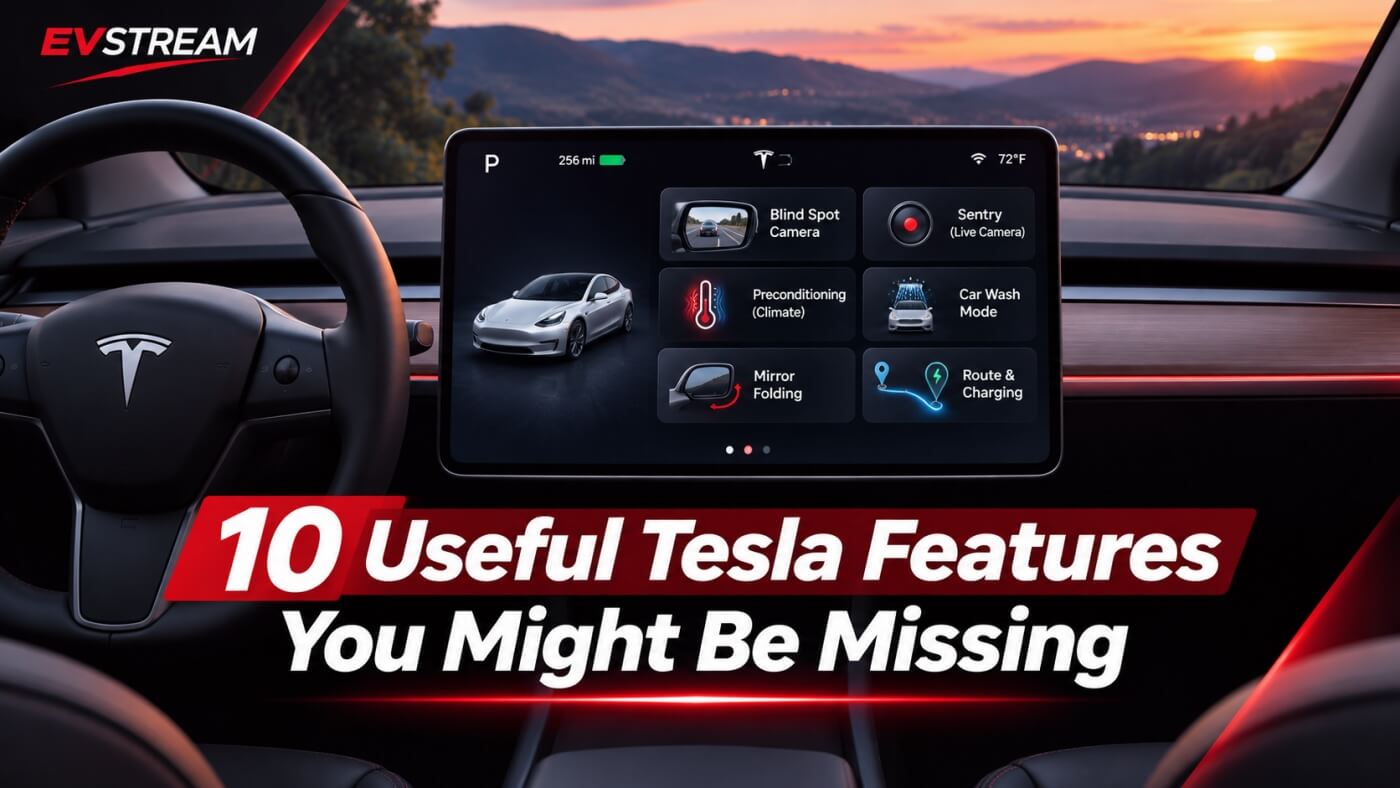
10 Useful Tesla Features You Might Be Missing
November 23, 2026 · 8 min read
One of the best things about owning a Tesla is discovering something new about a car you've already been driving for months.
Maybe it's a setting buried in a menu, a shortcut you never noticed, or a feature that makes everyday life just a little easier.
And with Tesla regularly updating its software, there's a good chance you've missed a few things along the way.
We've picked 10 Tesla features that are actually worth knowing about. Some are practical, some are surprisingly clever, and one might change how you spend your next charging stop.
Let's get into it.
1. Your Tesla Can Automatically Fold Its Mirrors at Specific Locations
Ever parked in a garage so narrow that you had to fold your mirrors before squeezing in?
On Teslas equipped with power-folding mirrors, you can teach the car to do that automatically at specific locations.
Here's how:
- Park at the location where you want the mirrors to fold.
- Open Controls and select Fold Mirrors.
- Tap Save Location when the option appears.
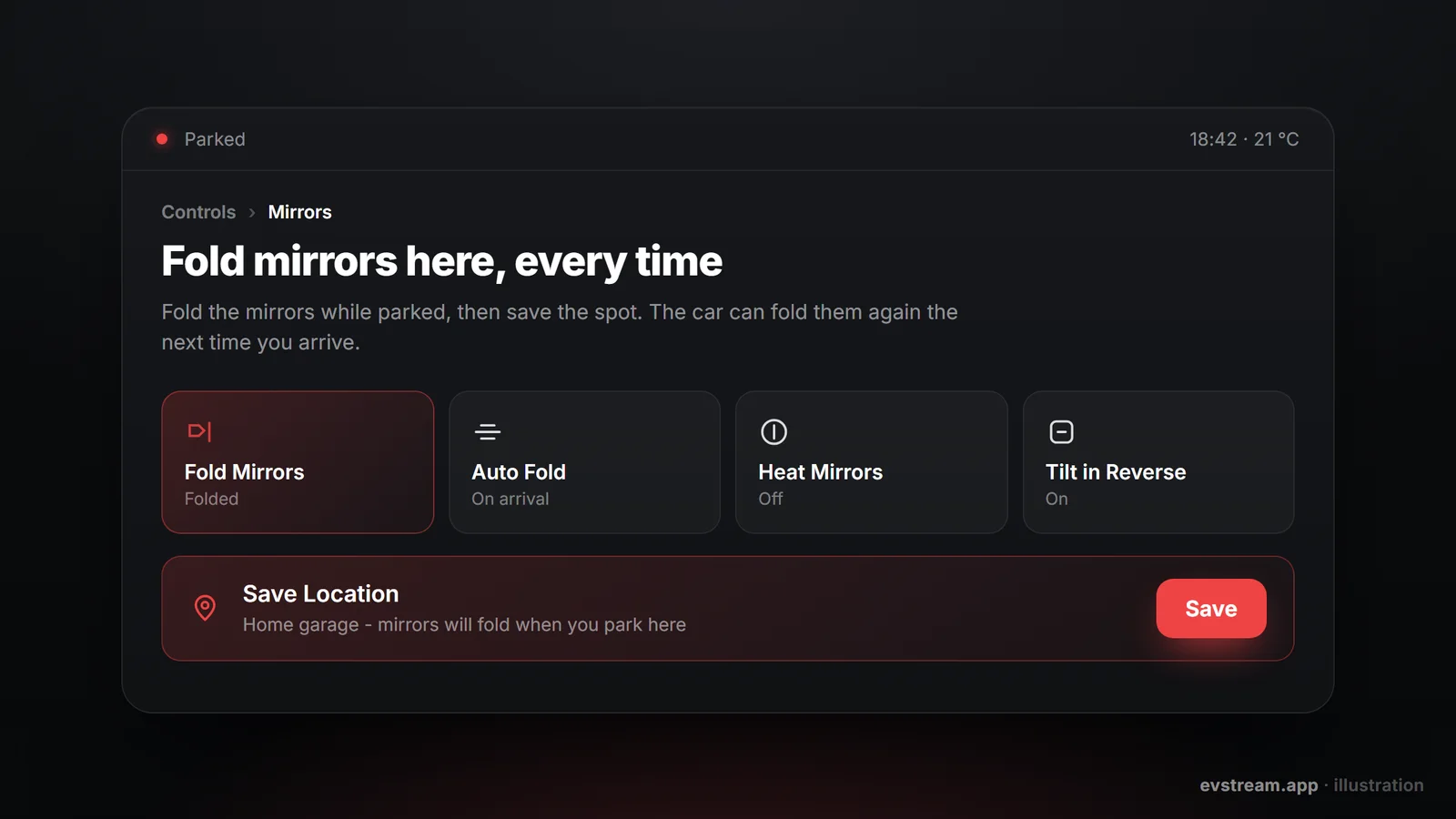
Next time you arrive at that location, your Tesla can fold the mirrors automatically.
This is particularly handy for narrow garages, tight driveways, and parking spots you use regularly.
It's a small thing, but not having to think about it every time is pretty nice.
2. Joe Mode Makes Your Tesla a Little Quieter
Here's one that's easy to overlook.
Tesla has a feature called Joe Mode, which reduces the volume of certain vehicle chimes without silencing critical safety alerts.
Why would you want that?
Imagine driving at night with your family, someone sleeping in the back, or simply wanting a quieter cabin without all the usual notification sounds.
To enable it, open Controls > Safety > Joe Mode.
It doesn't completely silence your Tesla, and important safety warnings still work.
It's not the most exciting feature on this list, but it might be one of the most appreciated on longer trips.
3. Car Wash Mode Takes Care of the Annoying Details
Taking a Tesla through a car wash involves a few things you might not immediately think about.
You don't want the automatic wipers suddenly activating, the charge port opening unexpectedly, or the car trying to lock itself.
That's where Car Wash Mode comes in.
You can find it under Controls > Service > Car Wash Mode.
When activated, your Tesla closes the windows, locks the charging port, and disables several automatic features, including the windshield wipers and walk-away door locking.
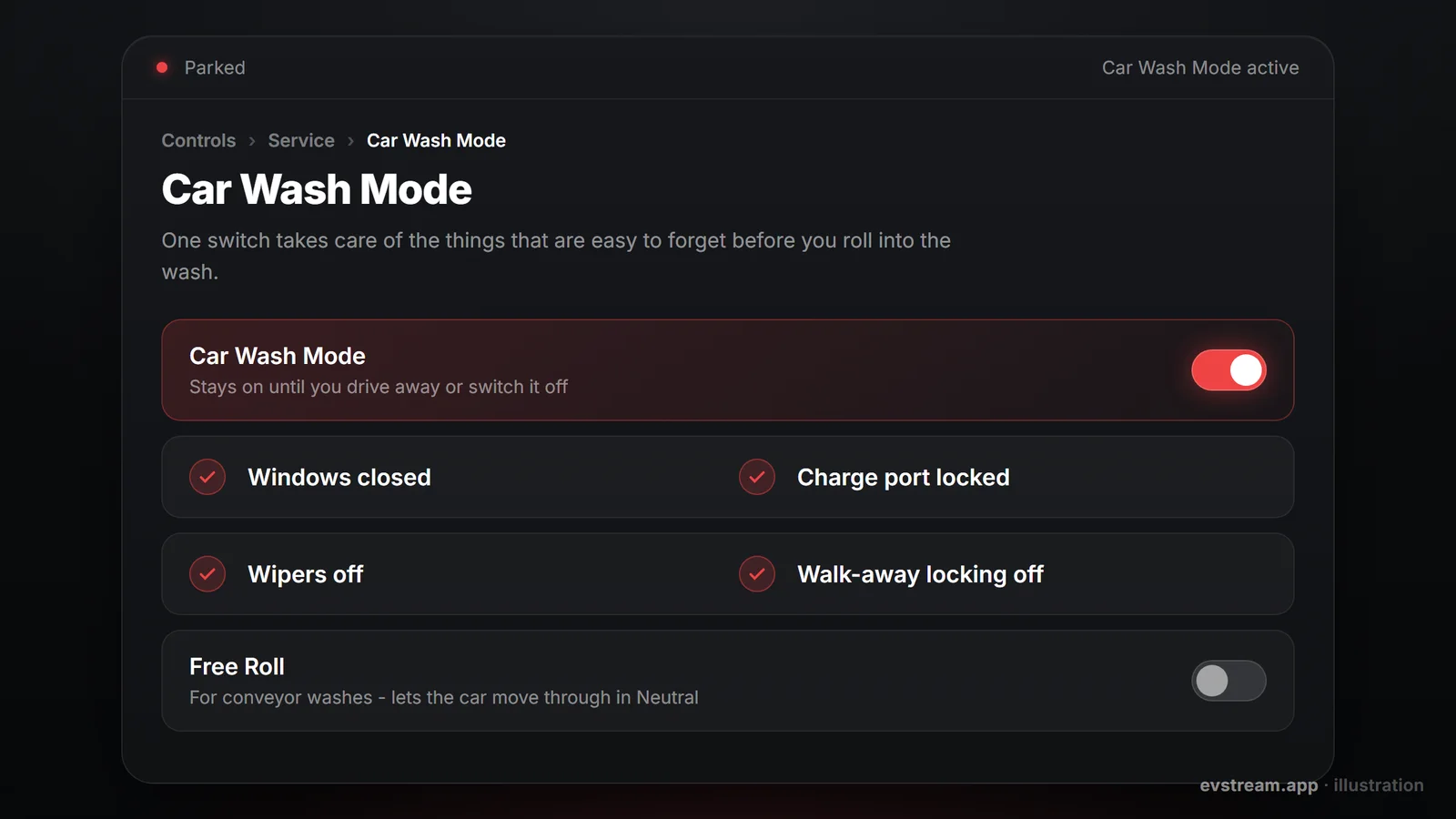
For compatible conveyor car washes, there's also a Free Roll option that allows the vehicle to move through the wash in Neutral.
Just follow Tesla's instructions and the car wash operator's directions. Tesla recommends touchless car washes for paint protection.
It's a clever feature that's easy to forget about until you actually need it.
4. Your Tesla Can Be Ready Before You Even Get Inside
Getting into a freezing car in the morning isn't exactly the best way to start your day.
Fortunately, Tesla lets you schedule preconditioning, so the car can prepare itself before you're ready to leave.
You can set a departure schedule through Controls > Schedule or the Tesla mobile app.
For example, if you leave for work around 7:30 every morning, you can schedule your Tesla to prepare for that time.
The system can warm or cool the cabin and condition the battery as needed. Preconditioning while plugged in can also reduce the amount of battery energy needed to prepare the car.
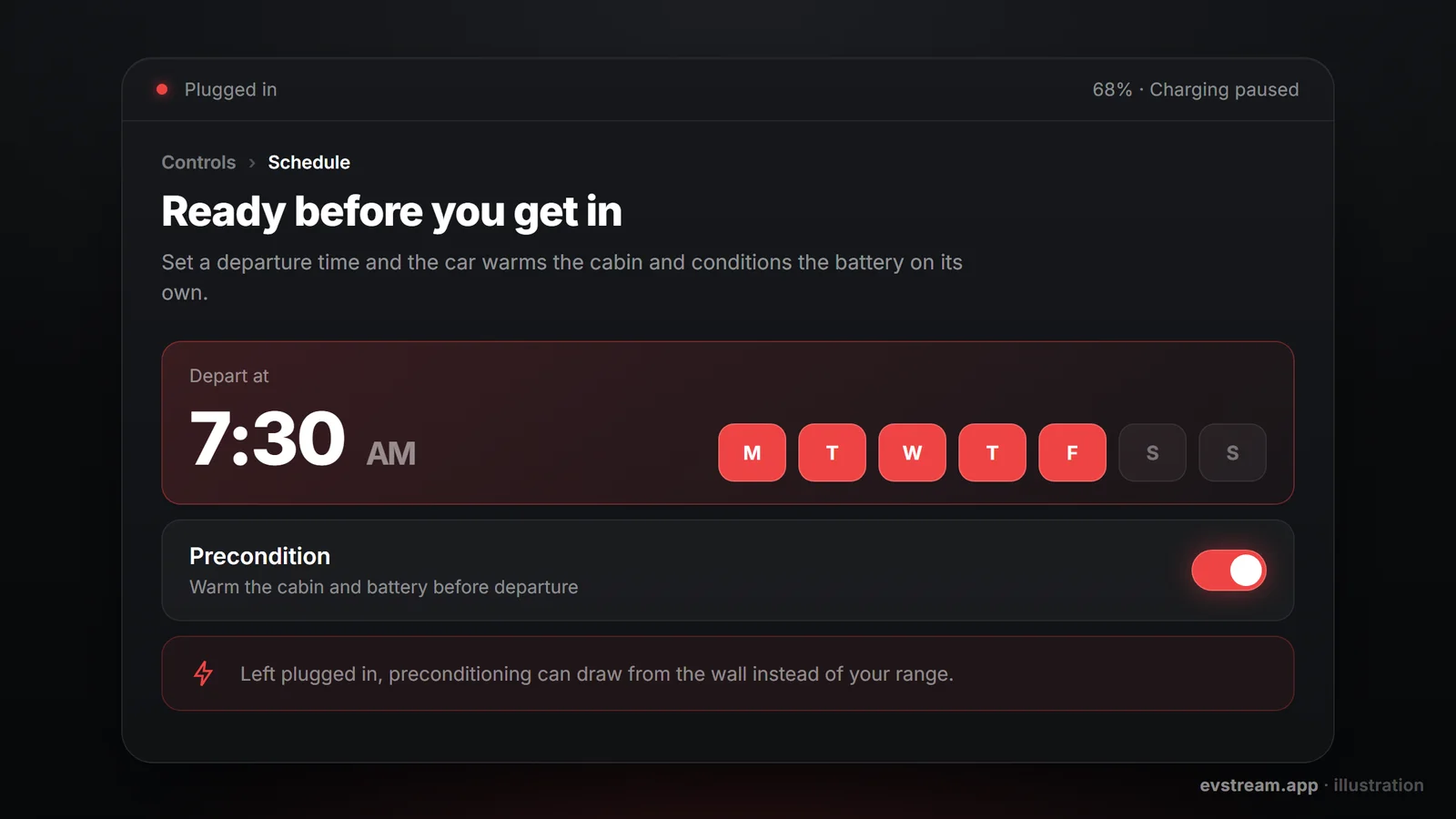
You can even create schedules for different locations.
It's one of those features that seems minor until you experience getting into a comfortable car every morning without touching the climate controls.
5. You Can Send a Destination to Your Tesla From Your Phone
Found a great restaurant while scrolling on your phone? Or maybe someone sent you the address of a place you've never visited.
You don't have to get into your Tesla and type the address all over again.
On a compatible phone, simply open the location in a supported maps app, tap Share, and choose the Tesla app.
Your destination can be sent directly to your vehicle's navigation system.
You can also plan a trip in the Tesla app and send it to your car.
This might sound like a tiny convenience, but it's especially useful when planning road trips or visiting unfamiliar places.
Instead of sitting in your parked car typing addresses into the touchscreen, you can have the destination ready before you leave.
6. Your Horn Can Save Dashcam Footage
Your Tesla has built-in Dashcam functionality, but here's something not everyone realizes.
On supported vehicles, you can configure Dashcam to save recent footage when you press the horn.
Open Controls > Safety > Dashcam and look for the On Honk option.
When it's enabled and the recording system is properly configured, using the horn saves the previous ten minutes of camera footage.
That could be useful during an unexpected road situation where you were already using the horn to warn another driver.
You don't need to reach for the touchscreen to save the clip.
Just remember that Dashcam requires a properly configured USB drive, and recordings aren't guaranteed in every situation. Always use your horn for its intended safety purpose, not simply to capture footage.
7. Your Blind Spot Camera Can Warn You About Nearby Vehicles
Tesla's Automatic Blind Spot Camera is another feature worth checking in your settings.
When enabled, activating a turn signal displays a live view from the corresponding side camera on your touchscreen.
And here's the useful part.
If the car detects a vehicle in the adjacent blind spot, it displays a red warning bar on the camera image.
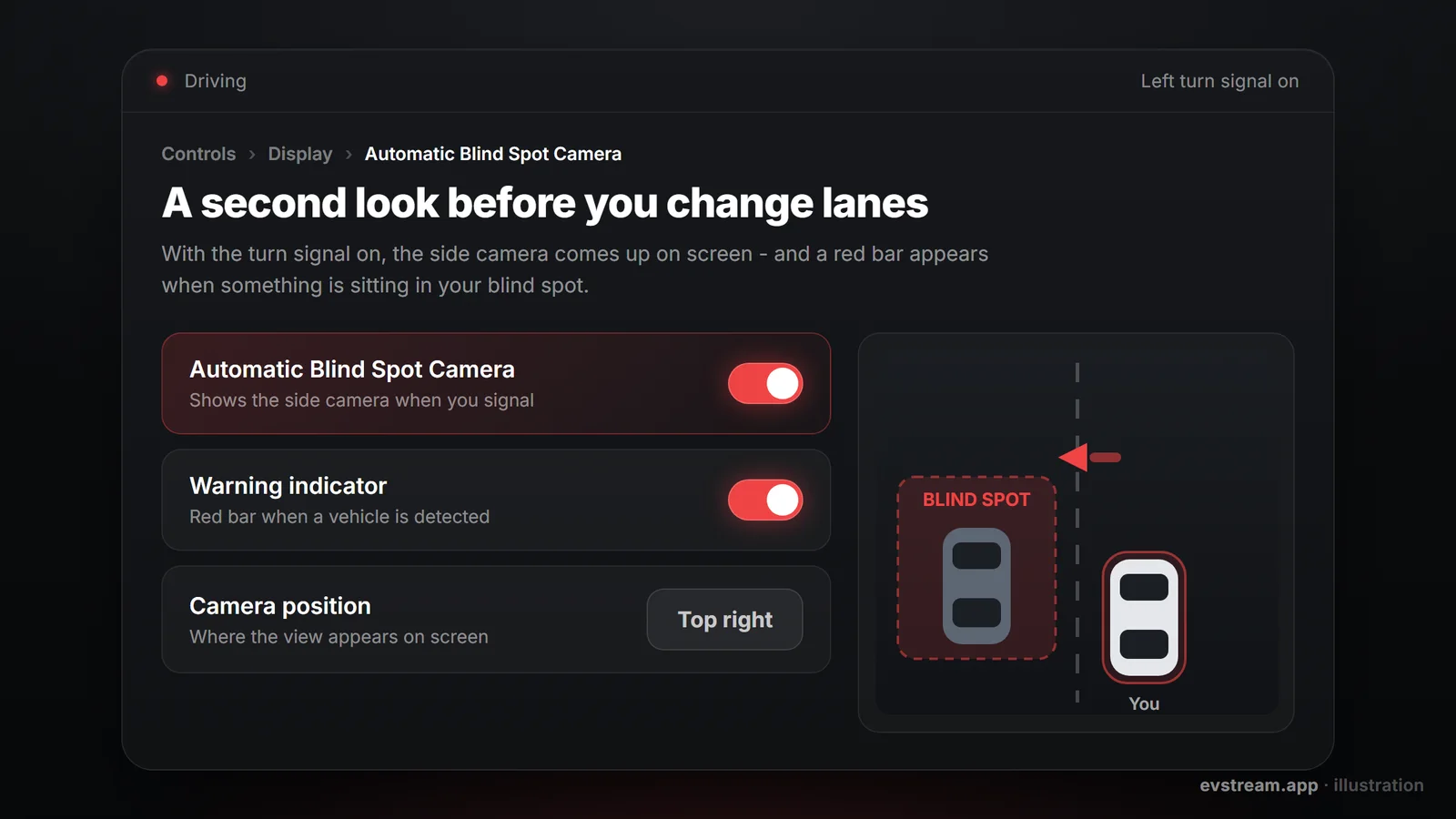
You can even move the camera preview to a different position on the screen.
To check the setting, open Controls > Display > Automatic Blind Spot Camera.
It's particularly helpful on busy highways, where keeping track of surrounding traffic matters.
Of course, it's an additional visual aid, not a replacement for checking your mirrors and surroundings before changing lanes.
8. You Can Check Your Tesla's Cameras From Your Phone
Imagine parking your Tesla somewhere unfamiliar, walking away, and later wondering what's happening around your car.
On supported vehicles, Sentry Mode's View Live Camera feature lets you remotely see the surroundings through the Tesla mobile app.
Instead of only receiving an alert, you can open the app and check available exterior camera views.
It's useful for checking on your parked vehicle without having to walk back to it.
To use it, you'll need a compatible Tesla, the required app setup, and Premium Connectivity. You also need to enable live camera access in the vehicle's Sentry Mode settings.
Availability depends on your model, region, and hardware, and using Sentry Mode can increase battery consumption.
Still, having that extra visibility when you're away from your car is a pretty impressive convenience.
9. PIN to Drive Adds Another Layer of Security
Your phone can act as a Tesla key, which is incredibly convenient.
But what happens if someone gains access to your phone or another authorized key?
That's where PIN to Drive comes in.
This feature requires a four-digit PIN before the car can be driven, even when an authorized key is present.
You can enable it under Controls > Safety > PIN to Drive.
It's especially worth considering if you park in public places regularly or simply prefer additional protection.
There is a small trade-off: you'll need to enter your PIN whenever required before driving.
For some owners, that's a worthwhile exchange for extra peace of mind.
10. Your Tesla Browser Can Do More Than You Think
Most people know that Tesla has a browser, but it's easy to underestimate what you can actually do with it.
When you're parked or charging, your Tesla screen can be used for much more than checking websites.
With the browser, you can:
- Browse information
- Explore compatible online apps
- Watch videos
- Follow live streams
- Play browser-based games
And because Tesla supports web-based applications, you're not limited to the services already listed in Tesla Theater.
For example, EVStream brings YouTube, Twitch, browser games, and a player for your existing IPTV service together in one place.
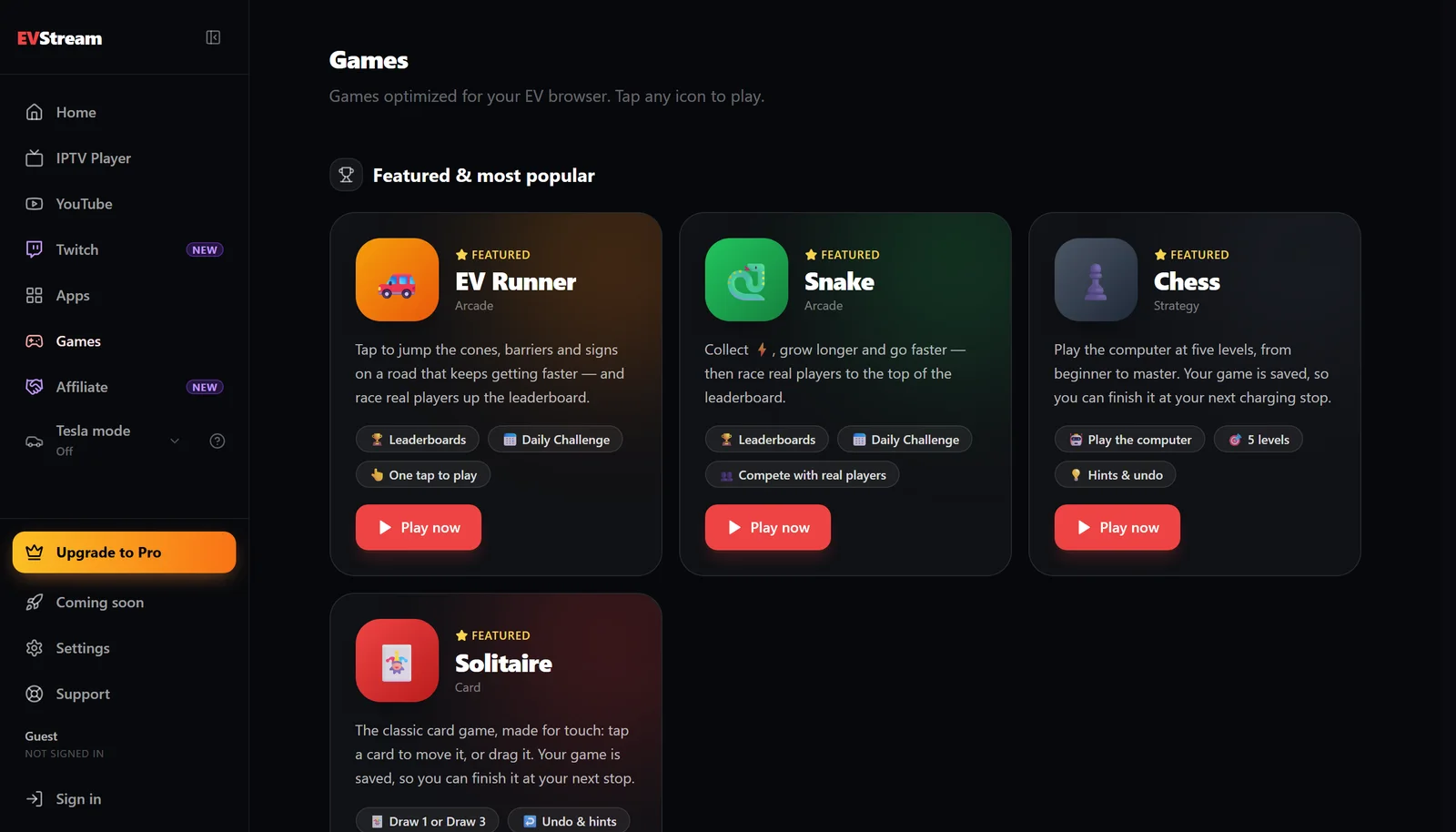
There's nothing to install. Just open it through your Tesla browser while parked.
Maybe you're waiting at a Supercharger and want to catch a live Twitch stream. Or perhaps you'd rather play a quick round of Snake or Chess instead of scrolling on your phone.
It's a different way to enjoy the screen you already have.
If you're curious about the difference between Tesla's entertainment options, check out our guide to Tesla Browser vs Tesla Theater.
Which Tesla Feature Should You Try First?
That's the fun thing about Tesla ownership. Not every useful feature comes with a big announcement or a flashy software update.
Sometimes the best ones are small improvements that make everyday driving, parking, or charging more convenient.
You might already know half of these. You might even use all ten.
But if there's one feature here you haven't tried, it's worth spending a minute exploring your Tesla's settings.
And the next time you're parked at a charger with some free time, don't forget that your screen can be useful for entertainment, too.
For more ideas, have a look at our guide to the best things to do while charging your Tesla.
Which Tesla feature do you think deserves more attention?
Note: Feature availability, menu locations, and functionality can vary by Tesla model, manufacturing year, region, hardware, and software version. Check your vehicle's owner's manual for model-specific instructions.
Open your Tesla browser and try it today
Charge your car. Stream your favorites.
Launch EVStream.app