How to Play an M3U Playlist in Your Browser (No App Needed)
November 17, 2026 · 7 min read
You've got an M3U playlist link from your IPTV provider, but you're not sure how to open it.
Maybe you've tried pasting it into Chrome, only to see a file download or a page full of text.
That's because an M3U playlist isn't something a browser normally knows how to play on its own.
The good news is that you don't need to install an IPTV application just to watch it.
With a browser-based IPTV player like EVStream, you can connect your M3U playlist and watch the channels included with your provider directly in your browser.
Here's how to get started.
What Is an M3U Playlist?
An M3U playlist is essentially a list of links to media streams.
In IPTV, providers use these playlists to organize the channels and content available through their service.
A playlist can contain information such as:
- Channel names
- Streaming URLs
- Channel groups or categories
- Channel logos
- Other information used by the player
For example, your provider might give you an M3U playlist containing hundreds of live TV channels.
The playlist itself doesn't contain all those videos. Instead, it tells your IPTV player where to find each stream.
That's why you need a compatible player to actually watch the content.
One important thing to understand is that an M3U playlist doesn't give you free access to TV channels. You still need access to the streams listed inside it, usually through your existing IPTV provider.
How to Play an M3U Playlist in Your Browser
You can use EVStream to connect an M3U playlist without downloading an application or browser extension.
Here's what to do.
Step 1 - Open EVStream
Open your preferred browser and visit evstream.app/connect.
EVStream works in supported browsers on laptops, desktop computers, phones, tablets, and Tesla or other EV browsers.
You don't need to install anything.
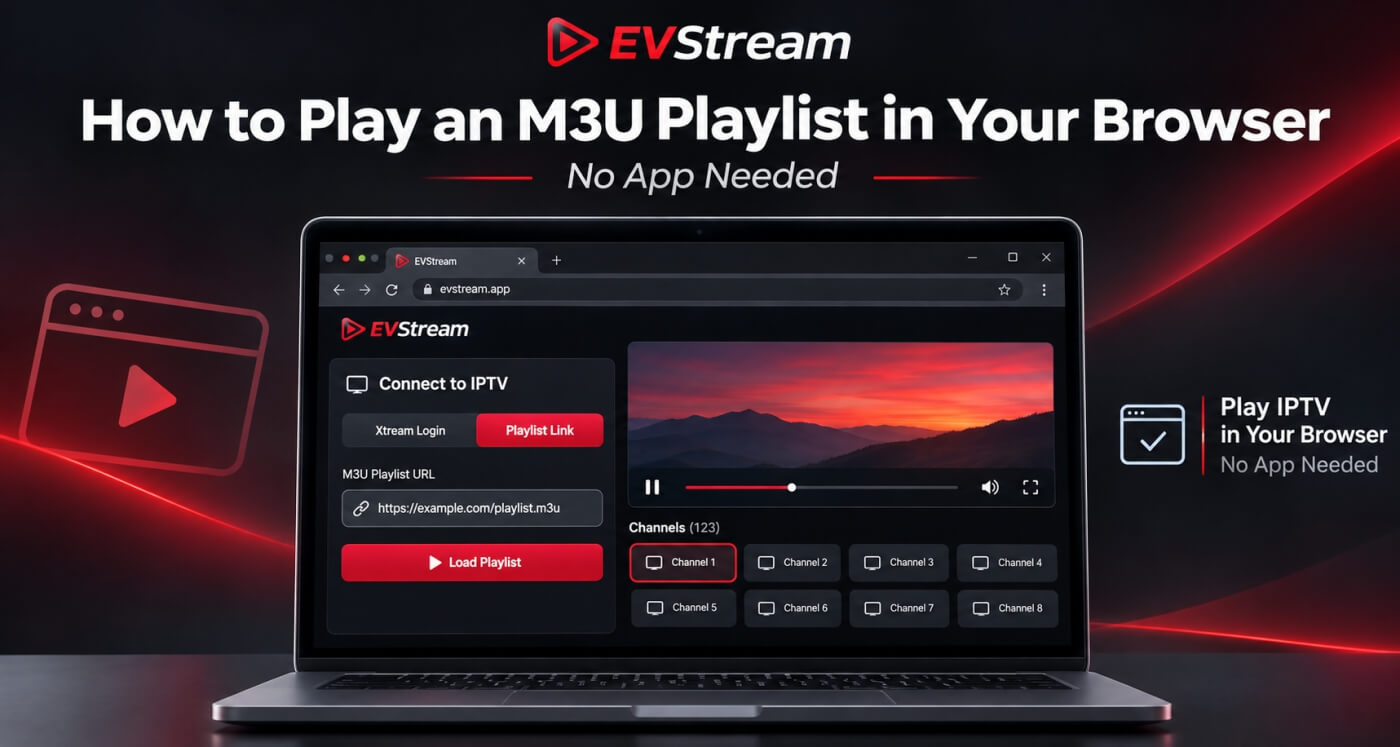
Step 2 - Select M3U & Playlist Link
On the connection screen, you'll see two options:
- Xtream Login
- M3U & Playlist Link
Choose M3U & Playlist Link.
This option is intended for people who already have an M3U playlist URL supplied by their IPTV provider.
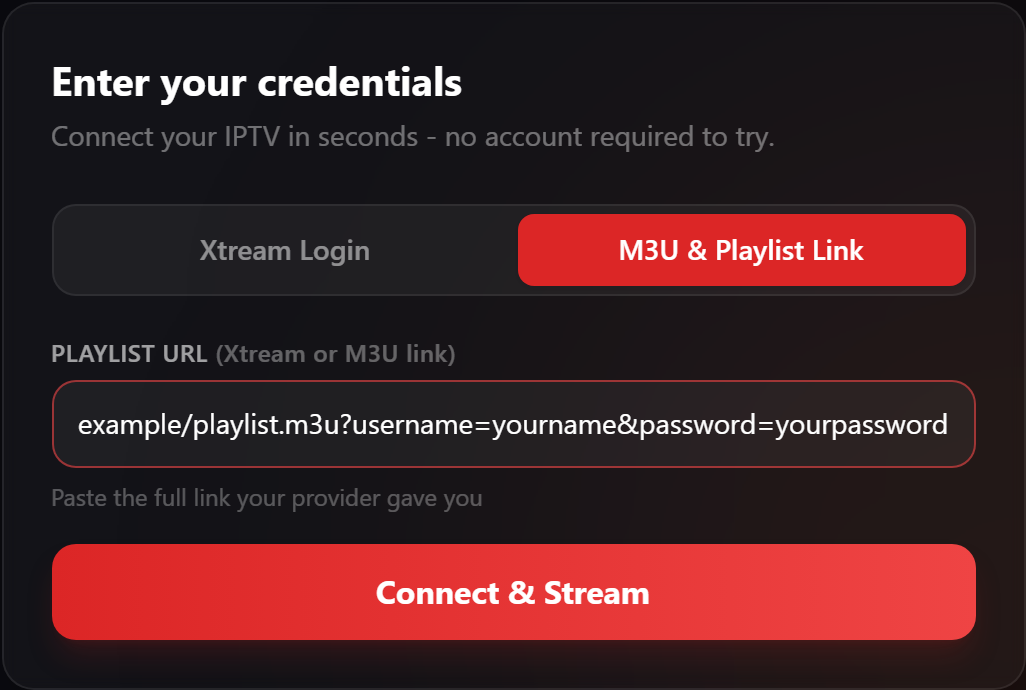
Step 3 - Enter Your M3U Playlist URL
Copy the M3U playlist URL from your provider and paste it into the playlist field.
An M3U playlist link might look something like this:
https://provider.example/playlist.m3u
That's only an example. Your provider's URL will be different.
Some playlist links don't end in .m3u at all. They may include a username, password, or other information in the URL.
That's normal.
The important thing is to use the complete link exactly as your provider supplied it.
Don't remove parts of the URL or change the address unless your provider tells you to.
Step 4 - Connect Your Playlist
Once you've entered the link, select Connect & Stream.
EVStream will attempt to load the playlist and the streams available through your provider.
If everything is working correctly, you'll be taken to the player dashboard, where you can browse the available content.
Depending on how your playlist is organized, you may see different channel categories or groups.
Step 5 - Choose a Channel and Start Watching
Open Live TV and select the channel you want.
That's it.
You're now using your M3U IPTV playlist directly from your browser.
No IPTV application to install, no browser extension, and no separate software to configure.
If you're looking for more information about browser-based streaming, we've also written a guide on how to watch IPTV online without installing any apps.
Can You Open an M3U Playlist Directly in Chrome?
This is where many people get confused.
You might think that because Chrome can play videos, it should also be able to open an IPTV playlist.
But an M3U playlist isn't a video file.
It's a list of addresses pointing to media streams.
If you paste an M3U link directly into Chrome, the browser may download the playlist or display its contents as text instead of showing a channel list.
That doesn't necessarily mean your playlist is broken.
It simply means Chrome isn't treating the file as an IPTV channel library.
A browser-based IPTV player solves that problem by reading the playlist, organizing its entries, and providing controls for opening the available streams.
That's what EVStream is designed to do.
If you're comparing different solutions, our guide to choosing the best IPTV player for your browser explains what to look for.
What's the Difference Between M3U and M3U8?
You may have noticed that some streaming links end in .m3u, while others end in .m3u8.
They are related formats, but the way they're used can be different.
An M3U playlist is commonly used by IPTV providers to organize multiple channels or streams.
An M3U8 file uses UTF-8 text encoding and is also commonly used by HLS streaming, where a playlist describes the video segments or quality options needed to play a particular stream.
This means a link ending in .m3u8 might point to one video stream rather than a complete collection of TV channels.
The file extension alone doesn't always tell you everything.
For most users, the easiest approach is simply to use the playlist link provided by their IPTV service.
If you're unsure whether your link is a complete channel playlist or an individual stream, ask your provider.
M3U Playlist vs Xtream Codes - Which Should You Use?
EVStream supports both connection methods.
With an M3U playlist, your provider normally gives you one URL containing the information needed to load the playlist.
With Xtream Codes, you typically receive three separate details:
- Server URL
- Username
- Password
Both methods can provide access to your IPTV service, but they're not exactly the same.
An M3U playlist contains references to the streams available through that playlist, while an Xtream Codes connection lets the player request content information through your provider's supported API.
If your provider offers both options, you can try whichever works best with your service.
You don't need to convert an M3U playlist into Xtream Codes just to use EVStream.
And if your provider gave you Xtream Codes details instead of a playlist, we have a separate guide explaining how to set up IPTV with Xtream Codes.
What Can You Watch With an M3U Playlist?
That depends entirely on what your IPTV provider includes in the playlist.
Some playlists contain only live TV channels.
Others may include additional content or categories.
EVStream can organize the content available through compatible playlists and provide playback controls for supported streams.
You can also use features such as Favorites and Recently Watched to make it easier to return to channels you use regularly.
But EVStream doesn't add channels or content that aren't already available through your provider.
It's the player, not the content provider.
What If Your M3U Playlist Isn't Working?
Sometimes a playlist doesn't load correctly, or it loads but certain channels refuse to play.
There are several possible reasons.
1. The playlist URL is incorrect
Start by checking the URL.
Make sure you copied the entire link, including any information at the end. Even a small missing character can prevent a playlist from loading.
2. Your IPTV subscription has expired
Some M3U links are tied to active subscriptions.
If your subscription has expired or the provider has disabled your access, the playlist may stop working. Check with your IPTV provider if you're unsure about your account status.
3. Your provider changed its server address
Sometimes providers change their domains or servers.
If your playlist used to work but suddenly stopped, ask your provider whether the URL is still correct.
4. Your provider restricts third-party players
Not every IPTV provider allows its streams to be opened through external applications or web players.
Some require their own application or impose connection restrictions. If your subscription works in the provider's app but not through EVStream, this is worth checking.
5. The playlist loads, but the channel doesn't play
This is a different problem.
If EVStream successfully loads your channel list but a particular channel doesn't start, the playlist itself may be fine. The problem could be related to the individual stream, its audio or video format, browser compatibility, or the provider's server.
Try another channel from the same playlist. If most channels work and only one fails, there's a good chance the issue is specific to that stream.
6. The video keeps buffering
Buffering can happen because of an unstable internet connection, an overloaded IPTV server, or the way the stream is being handled.
Try the same channel on another device or network.
If a channel plays video but has no audio, see our guide on why IPTV has video but no sound in a browser. And if playback keeps stopping to load, read IPTV Keeps Buffering? Common Causes and How to Fix It.
Can You Use an M3U Playlist on Multiple Devices?
Yes, as long as your provider permits it and the devices support the player.
Because EVStream runs directly in the browser, you can open it on different supported devices without installing a separate IPTV application.
For example, you could use EVStream on your laptop at home and open it again on your tablet or phone.
You can also use it in a supported Tesla browser while parked.
Keep in mind that some IPTV providers limit the number of simultaneous connections.
Being able to open the player on several devices doesn't automatically mean your IPTV subscription allows multiple streams at the same time.
Is It Safe to Share Your M3U Playlist Link?
Be careful with this.
Some M3U playlist URLs contain account credentials or access tokens.
That means someone who gets your link may also be able to use your IPTV subscription.
Avoid posting your playlist URL publicly or sharing it in screenshots, forums, or social media posts.
Only enter it into services you trust.
If you believe your playlist link has been exposed, contact your IPTV provider and ask whether your access details can be changed.
Can You Try EVStream for Free?
Yes.
You can test EVStream with your existing IPTV provider before choosing a paid plan.
That gives you a chance to see whether your playlist loads correctly and whether the channels you actually watch work in your browser.
You don't need to purchase a new IPTV subscription from EVStream.
In fact, EVStream doesn't sell IPTV subscriptions at all.
You simply bring the service you already use.
Frequently Asked Questions
Can I play an M3U playlist online without downloading an app?
Yes. A browser-based IPTV player such as EVStream can load a supported M3U playlist URL and play compatible streams directly in your browser.
Does Chrome support M3U playlists?
Chrome can open or download playlist files, but it doesn't automatically turn a normal IPTV M3U playlist into a channel player.
For that, you'll generally need a compatible web-based player.
Can I use an M3U playlist on my phone?
Yes. EVStream works in supported mobile browsers, so you can open your playlist from your phone without installing a dedicated IPTV application.
Can I upload an M3U file instead of using a URL?
EVStream's M3U & Playlist Link option is designed for a playlist URL.
If your provider only supplied a downloaded .m3u file, ask whether they can provide a hosted playlist link that you can use with EVStream.
Is an M3U playlist the same as an IPTV subscription?
No. An M3U playlist is a format used to list media streams.
Your IPTV subscription or other authorized content source determines which streams you're allowed to access.
Does EVStream provide free IPTV channels?
No. EVStream is an IPTV player, not a channel provider.
You need your own IPTV service or another playlist containing streams you're authorized to watch.
Final Thoughts
You don't need to install an IPTV app just to open an M3U playlist.
If you've already got a playlist URL from your provider, you can connect it directly through a browser-based player such as EVStream.
Open evstream.app/connect, choose M3U & Playlist Link, enter your M3U URL, and start exploring the available channels.
It's a simple way to use your existing IPTV subscription on your computer, phone, tablet, or supported Tesla browser.
And if you're still deciding whether a browser player is right for you, take a look at our guide to the best IPTV player for browser streaming.
With EVStream, you bring your IPTV provider. We handle the player.
Open your Tesla browser and try it today
Charge your car. Stream your favorites.
Launch EVStream.app