Tesla Browser vs Tesla Theater - What's the Difference and Which Should You Use?
November 17, 2026 · 8 min read
You've probably used YouTube or Netflix in your Tesla, but have you ever wondered why some streaming services appear in Tesla Theater while others need to be opened through the browser?
Both use the same touchscreen, both can play video, and both are useful when you're parked or charging.
So what's actually different?
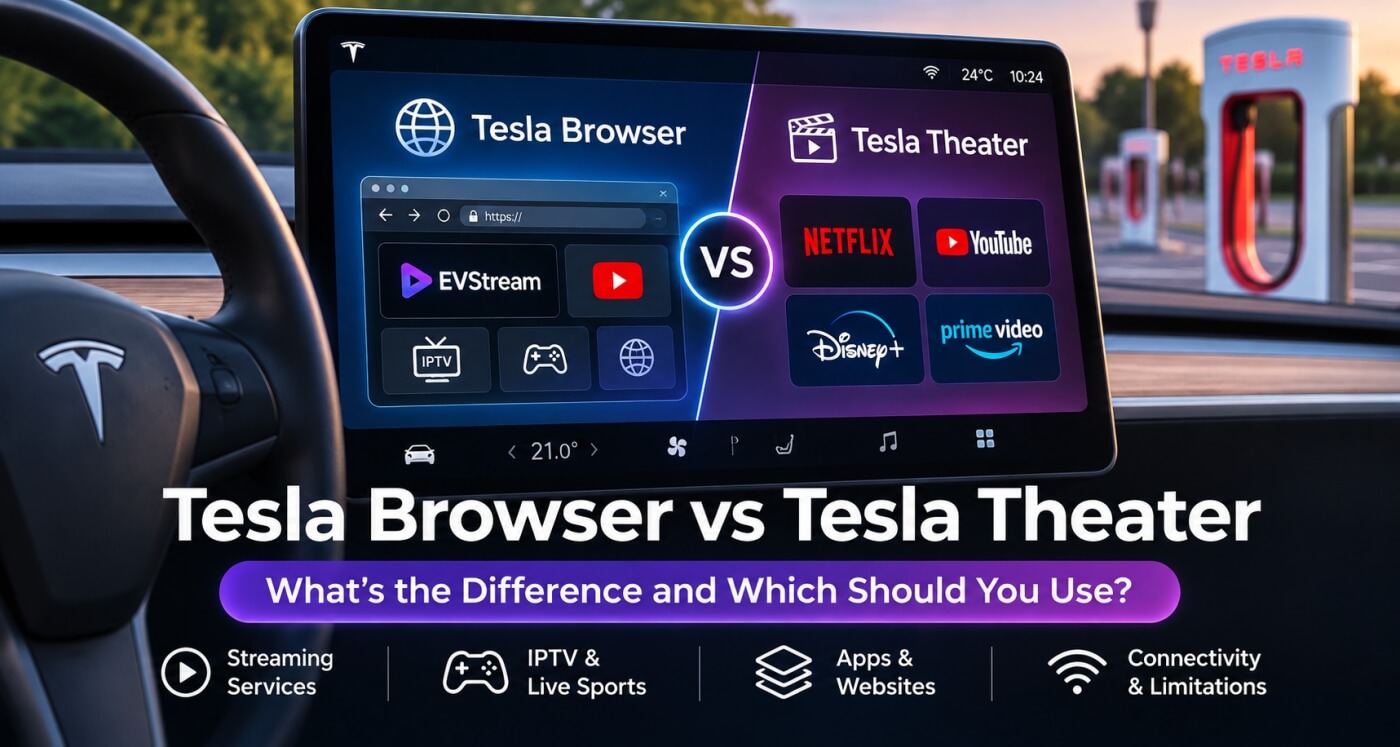
Tesla Theater is the built-in entertainment experience for supported streaming services. Tesla Browser lets you open websites and web apps, including entertainment services that aren't listed in Theater.
The interesting part is that Tesla has started bringing these two experiences closer together.
Let's look at what each one can do, which streaming services work, and when it makes sense to use one over the other.
Tesla Browser vs Tesla Theater - Quick Comparison
Here's a quick overview before we get into the details.
| Feature | Tesla Theater | Tesla Browser |
|---|---|---|
| Main purpose | Video streaming | Websites and web apps |
| Netflix and YouTube | Built-in shortcuts where supported | Accessible through compatible websites |
| Other streaming services | Limited built-in selection | Broader website access |
| Live TV and IPTV | No general-purpose IPTV player | Supported through web players such as EVStream |
| Full-screen video | Built-in Theater experience | Available on supported websites and players |
| Browser games | Use Tesla Arcade for built-in games | Access compatible web games |
| Internet required | Yes, for streaming | Yes, for online websites |
| Premium Connectivity required | No, if supported Wi-Fi is available | No, if supported Wi-Fi is available |
Both have their advantages, and the better choice depends on what you want to do.
What Is Tesla Theater?
Tesla Theater is the entertainment section built into Tesla's touchscreen software.
It's designed to make watching supported streaming services easy while the car is parked.
Instead of opening the browser and entering a website address, you choose a service from the Theater menu.
Depending on your Tesla model, region, and software version, available services may include:
- YouTube
- Netflix
- Hulu
- Other supported streaming platforms
Theater provides a more straightforward experience for these services because they're already integrated into Tesla's entertainment menu.
You don't need to bookmark websites or remember URLs.
Simply open Theater, choose a service, sign in if necessary, and watch.
One important detail: having Premium Connectivity doesn't automatically give you paid subscriptions to Netflix or other third-party services. You'll still need access to those services separately.
You can find more information in Tesla's official Theater documentation.
What Is the Tesla Browser?
Tesla Browser is the car's built-in web browser.
Unlike Theater, which focuses on supported streaming services, the browser allows you to visit websites directly.
That opens up many more possibilities.
For example, you can use it for:
- Weather and radar websites
- Charging station information
- Trip planning
- News and articles
- Online games
- YouTube
- Compatible streaming websites
- Browser-based entertainment apps
- IPTV players such as EVStream
The main advantage is flexibility.
If a service doesn't appear in Tesla Theater, that doesn't necessarily mean you can't access it from your car.
You may still be able to open its website directly in the browser.
Of course, not every website works perfectly. Some video services require browser features or media formats that may not be fully supported by your Tesla.
If you want more ideas, we've already collected some of the best Tesla browser apps and websites worth trying.
Can Tesla Browser Play the Same Streaming Services as Theater?
In some cases, yes.
And this is where things have become particularly interesting.
Tesla's 2026 browser improvements expanded full-screen support for several popular streaming websites.
Previously, opening a streaming website through the Tesla browser often meant keeping the normal browser interface visible until the video entered full screen.
With newer software, certain recognized streaming websites can automatically open in a Theater-style full-screen experience.
Reports have confirmed this behavior with services including:
- Apple TV
- Disney+
- HBO Max
- Paramount+
- Peacock
- Plex
- Amazon Prime Video
This doesn't necessarily mean all these services have become permanent, built-in Tesla Theater apps.
Instead, Tesla can recognize certain websites and display them using a more immersive interface.
It's a useful improvement because owners have more ways to enjoy their existing streaming subscriptions without needing a separate app installation.
However, compatibility can still vary by vehicle, software version, streaming service, and region. Some websites may also have login or playback restrictions.
You can read more about the changes in this report on Tesla's expanded browser streaming support.
Which Is Better for Watching YouTube?
If you simply want to open YouTube while your Tesla is parked, Tesla Theater is a convenient option.
You select YouTube from Theater and use the familiar service.
But the browser gives you other options too.
For example, EVStream includes a separate YouTube player designed with Tesla and other in-car browsers in mind.
You can open it directly at evstream.app/youtube.
EVStream offers a touchscreen-friendly YouTube experience with features such as video search, channels, playlists, autoplay, watch history, Continue Watching, and more.
Another useful feature is Flex Mode, which provides alternative playback methods for older browsers and devices where normal playback may not work properly.
So which should you choose?
Use Tesla Theater
If you prefer Tesla's built-in YouTube shortcut.
Use EVStream in Tesla Browser
If you want its alternative YouTube player or additional browser compatibility options.
We've written a dedicated guide explaining how to watch YouTube in your Tesla browser.
What About Live TV, Sports, and IPTV?
This is where Tesla Browser becomes particularly useful.
Tesla Theater doesn't include a general-purpose IPTV player where you can enter your own Xtream Codes or M3U playlist details.
But browser-based services can provide that functionality.
For example, EVStream allows you to connect an existing IPTV subscription and access the content provided by your service.
That can include:
- Live TV channels
- Sports
- Movies
- TV series
- Catch-Up, when supported by your provider
There is no separate Tesla application to install.
Open evstream.app/connect, connect your IPTV provider, and EVStream will load the available content into its browser-based player.
EVStream doesn't supply channels, sports subscriptions, movies, or other IPTV content. You need your own provider with the necessary content rights and access.
If you're interested in watching sports during a charging stop, you can also read our guide on how to watch live sports in your Tesla browser.
Is Tesla Theater Better for Full-Screen Video?
Tesla Theater was designed around a full-screen streaming experience.
With supported services, it generally provides a cleaner view without the usual browser controls taking up space.
Tesla Browser is more flexible, but full-screen behavior depends on the website.
Some video players have their own full-screen button.
Some streaming websites automatically enter a Theater-style view on compatible Tesla software.
Others may continue displaying browser controls or may not support full-screen playback properly.
There isn't a universal guarantee that every website will behave like Tesla Theater.
If your main goal is to watch a supported service with minimal setup, Theater is often the easier choice.
If you need a website or web player that isn't available through Theater, the browser gives you more options.
Do You Need Premium Connectivity for Either One?
Not necessarily.
Tesla supports internet browsing and video streaming over Wi-Fi on compatible vehicles, including through a phone's mobile hotspot.
Premium Connectivity adds the convenience of using Tesla's built-in cellular connection for supported features.
Without Premium Connectivity, you can connect your Tesla to Wi-Fi and use supported online entertainment features.
For example, you could:
- Enable the mobile hotspot on your phone.
- Connect your Tesla to that hotspot.
- Open Tesla Theater or the browser.
- Use a compatible streaming service.
Just remember that streaming video can consume a significant amount of mobile data.
We've covered this in more detail in our guide: Can You Use the Tesla Browser Without Premium Connectivity?
You can also check Tesla's official Connectivity information for the differences between Standard and Premium Connectivity.
What Happens When the Tesla Is in Drive?
This is an important distinction.
Tesla's normal front-screen Theater video is intended for use while parked.
According to Tesla's owner's manual, when the vehicle shifts out of Park, front-screen streaming video pauses while audio may continue.
Some Tesla vehicles also have a rear touchscreen that supports video entertainment for rear-seat passengers while the vehicle is moving.
That is a separate experience from the front display.
Browser-based playback can behave differently depending on the website, vehicle, and software version, but the browser should not be treated as a way to remove driving safety restrictions.
Drivers should never watch or interact with video content while driving.
For the driver, video entertainment is best enjoyed while parked or charging.
What If Video Works in Theater but Not in the Browser?
This can happen.
The same streaming service may use different playback behavior depending on how it's opened.
If a video plays through Theater but fails in the browser, try another video or website first.
Then check whether your Tesla has a working internet connection.
If other websites load correctly but the video still doesn't play, the problem may be related to media compatibility or the website's video player.
Older browser versions can also have additional limitations.
We've written a separate troubleshooting guide for this: Tesla Browser Video Not Playing? Common Causes and Fixes
Sometimes changing the playback method can help, but not every video problem has a player-side solution.
So, Which One Should You Use?
Here's how I would choose.
Choose Tesla Theater when:
- You want Netflix, YouTube, or another built-in supported service.
- You prefer opening streaming services from Tesla's entertainment menu.
- You want a straightforward, integrated viewing experience while parked.
Choose Tesla Browser when:
- You want to open websites that aren't listed in Theater.
- You want to access browser apps, games, or travel tools.
- You use EVStream for your own IPTV subscription.
- You want EVStream's YouTube player.
- You need a compatible web-based entertainment service.
And there's no reason you can't use both.
You might open Netflix through Theater while charging one day, then use the browser to watch YouTube through EVStream or check the weather during your next stop.
Frequently Asked Questions
Is Tesla Theater the same as Tesla Browser?
No. Theater is Tesla's integrated streaming experience, while Browser provides general website access.
However, some streaming websites now open in a Theater-style full-screen view through the browser.
Can I watch Netflix in Tesla Browser?
Tesla provides Netflix through Theater in supported regions and vehicles.
Certain streaming websites can also open through the browser, but Netflix playback behavior and availability may differ depending on your software and region. Theater is generally the simpler option for Netflix.
Can I watch IPTV through Tesla Theater?
Tesla Theater doesn't include a general-purpose IPTV player for your own Xtream Codes or M3U subscription.
You can use a compatible browser-based IPTV player such as EVStream instead.
Does Tesla Browser support full-screen video?
Yes, on supported websites and players.
Some streaming websites can also open in a Theater-style full-screen view on newer Tesla software.
Not every website supports the same behavior.
Can I use Tesla Theater without Premium Connectivity?
Yes, supported streaming features can work over Wi-Fi, including a compatible phone hotspot.
You'll still need access to any third-party streaming subscriptions you want to use.
Final Thoughts
Tesla Theater and Tesla Browser are both useful, but they're designed for slightly different purposes.
Theater is the convenient choice for supported streaming services.
Browser gives you more freedom to explore websites, use web apps, and access other browser-based entertainment options.
And with Tesla continuing to improve its browser, the line between the two experiences is becoming less obvious.
For most owners, the best approach is simply to use whichever one works better for the service they want.
If you're looking for YouTube or a player for your existing IPTV provider, EVStream is another option worth trying from the Tesla browser.
Visit evstream.app to get started.
And for more ideas, take a look at our guide to the best Tesla browser apps and websites.
Open your Tesla browser and try it today
Charge your car. Stream your favorites.
Launch EVStream.app