How to Watch Twitch in Your Tesla Browser
November 23, 2026 · 7 min read
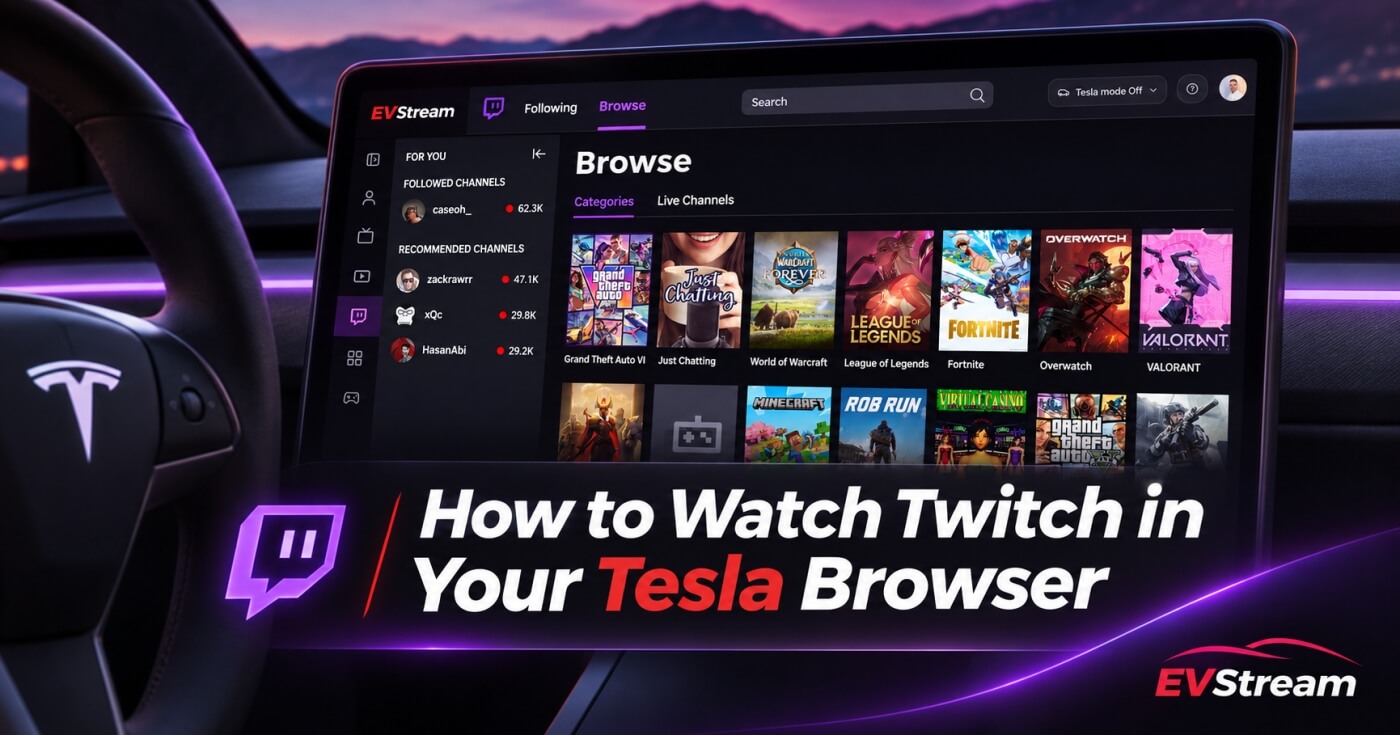
Picture this: you're parked at a Supercharger, your Tesla is charging, and you've got some time to kill. Instead of scrolling through your phone, why not catch up on your favorite Twitch streamer right on your Tesla's touchscreen?
Whether you're into gaming, live conversations, esports, or just watching someone play your favorite game, Twitch is a great way to make charging stops a little more entertaining.
And yes, you can watch Twitch in your Tesla without installing any additional apps.
There are a few ways to do it, including directly through the Tesla browser, using Tesla Theater on supported vehicles, or through EVStream.
Tesla browser
Open twitch.tv directly
EVStream
Twitch, YouTube and games in one place
Tesla Theater
If your car lists Twitch there
Three ways in - all of them while the car is parked.
Let's go through your options.
Can You Watch Twitch in a Tesla?
Yes! Tesla owners can access Twitch through the car's built-in web browser, and some vehicles also include Twitch as an option in Tesla Theater.
The browser gives you access to websites and web-based apps directly from your Tesla's screen. That means you don't necessarily need a dedicated app for every streaming service you want to use.
However, there's one thing worth knowing.
Tesla's browser doesn't always behave exactly like Chrome on your computer or Safari on your phone. Some websites may have playback issues, certain features might not work properly, and the experience can vary depending on your Tesla's software version.
That's why it's useful to know a few different ways to watch.
Method 1: Watch Twitch Directly in Your Tesla Browser
The simplest option is to try Twitch's official website.
Here's how:
- Park your Tesla and open the built-in browser.
- Visit twitch.tv.
- Browse the available live streams or search for your favorite creator.
- Select a live stream and press play.
- Use the video player's fullscreen option if it's supported.
That's it!
If the website loads and the video plays correctly, you're good to go.
You can browse gaming streams, watch live esports, or find creators streaming under categories like Just Chatting.
Keep in mind that Twitch is primarily designed for regular web browsers, so the experience may differ on Tesla's touchscreen. You might encounter issues with login, playback, or fullscreen controls.
If that happens, there's another option worth trying.
Method 2: Watch Twitch in Your Tesla Using EVStream
EVStream brings several entertainment options together in one browser-based platform, including YouTube, Twitch, live TV, and games.
Instead of opening different websites every time you want to watch something, you can access your entertainment from one place.
And the Twitch section is free to use.
How to Get Started
- Open your Tesla browser.
- Visit evstream.app.
- Select Twitch from the menu, or go directly to EVStream Twitch.
- Browse live streams and categories.
- Choose a stream and start watching.
No additional application needs to be installed on your Tesla.
Connect Your Twitch Account
Already have a Twitch account with a bunch of channels you follow?
You can connect it to EVStream, too.
EVStream offers a convenient way to connect your Twitch account using your phone, so you don't have to type your Twitch credentials on the car's touchscreen.
No Twitch password typed on the car's touchscreen.
Simply follow the on-screen connection instructions, scan the code with your phone, and complete the authorization.
Once connected, you can access the channels you follow and see which creators are currently live.
What Can You Do With Twitch on EVStream?
EVStream's Twitch section includes several useful features:
- Followed channels: Quickly find creators you already follow.
- Live streams: See who's streaming right now.
- Browse categories: Discover gaming, entertainment, and other live content.
- Popular streams: Explore live streams that are attracting viewers.
- Live chat: Follow the conversation alongside the stream.
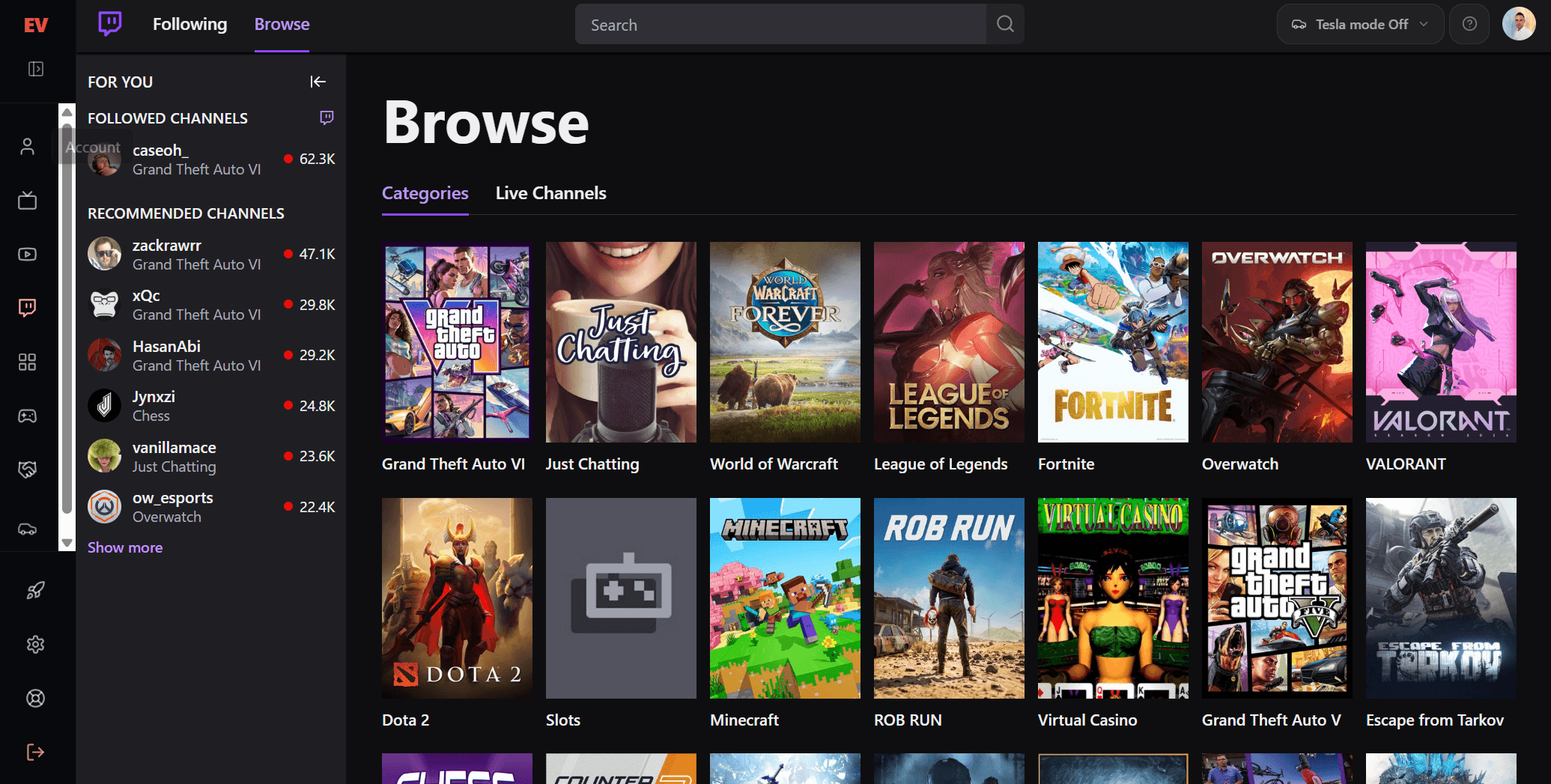
The idea is simple: make Twitch convenient to use on your Tesla screen without needing a separate app.
You can also use EVStream on your laptop, tablet, or phone, so it isn't limited to your Tesla.
Method 3: Check Tesla Theater
Before you start browsing websites, it's worth checking whether Twitch is already available in your Tesla Theater.
Tesla has offered Twitch through Theater on supported vehicles, although availability can depend on your model, region, hardware, and software.
To check:
- Put your Tesla in Park.
- Open the entertainment menu.
- Select Theater.
- Look for Twitch among the available services.
- If it's there, open it and start watching.
If Twitch is available in your Theater menu, this may be the easiest option for you.
If not, you can still try the browser-based methods above.
Not sure how Tesla Theater differs from the regular browser? We've covered that in our guide: Tesla Browser vs Tesla Theater - What's the Difference?
Do You Need Premium Connectivity to Watch Twitch?
Not necessarily.
To watch Twitch, your Tesla needs a working internet connection.
If your vehicle supports the required connectivity features, you may be able to use your phone's mobile hotspot or another Wi-Fi connection instead of paying for Tesla Premium Connectivity.
For example, if you're parked at a charging station, you can connect your Tesla to your phone's hotspot and open Twitch through the browser.
Just remember that live streaming uses data, especially when watching higher-quality video.
If you're using a mobile data plan with limited data, it's worth keeping an eye on your usage.
We've explained the connectivity options in more detail here: Can You Use the Tesla Browser Without Premium Connectivity?
Twitch Not Working in Your Tesla Browser? Try These Fixes
Sometimes everything looks fine until you press play.
The Twitch website loads, you can see the streamer, but the video stays black or keeps buffering.
Before giving up, try a few simple things.
1. Refresh the browser
Start with the easiest fix. Refresh the page or close and reopen the browser. Temporary loading problems can sometimes prevent a video from starting correctly.
2. Check your internet connection
Live streaming needs a reasonably stable connection. If Twitch keeps buffering, try switching your Tesla to another Wi-Fi network or your phone's hotspot.
If the stream works on one connection but not another, the network could be causing the problem.
3. Try another live stream
Not every playback problem affects the entire website. Open a different Twitch channel and see whether it works.
If one stream plays but another doesn't, the issue may be specific to that stream rather than the browser itself.
4. Try EVStream
If Twitch's regular website isn't giving you the experience you expected, try opening the Twitch section through EVStream. It offers another way to browse and access Twitch content from your Tesla browser.
Compatibility can still vary, so it's worth testing it on your own vehicle.
For more general playback troubleshooting, we've also put together a guide on Tesla browser video problems and how to fix them.
Can You Watch Twitch While Your Tesla Is Driving?
Tesla's front-screen video entertainment is designed primarily for use while the vehicle is parked.
On supported vehicles, rear-seat entertainment may also be available for passengers while the car is moving.
However, video availability depends on your Tesla model, software, and applicable restrictions.
Drivers should never watch Twitch or interact with entertainment videos while driving.
Video entertainment must not distract the driver, and passenger viewing should always follow local laws and Tesla's safety guidance.
The safest time to enjoy Twitch on the front touchscreen is while parked or charging.
More Than Twitch: What Else Can You Watch in Your Tesla?
Twitch is great when you want to catch a live stream, but sometimes you're in the mood for something different.
Maybe you want to watch a YouTube video, catch up on a show, or play a quick game while waiting for your car to finish charging.
That's exactly why we built EVStream around more than one type of entertainment.
Alongside Twitch, EVStream includes:
- YouTube: Search videos, access playlists, and connect your YouTube account.
- Live TV, movies, and series: Watch content from an IPTV provider you already subscribe to.
- Games: Play Snake, EV Runner, Chess, and Solitaire right in your browser, with leaderboards and daily challenges for selected games.
You can jump between these sections from the same dashboard.
If you haven't tried the games yet, check out EVStream Games. They're a fun way to spend a few minutes while charging.
And if YouTube is more your thing, we've also written a guide on how to watch YouTube in your Tesla browser.
Frequently Asked Questions
Is Twitch available in Tesla?
Yes. Twitch can be accessed through Tesla's web browser, and some supported vehicles also offer Twitch through Tesla Theater. Playback and availability can vary depending on your vehicle and software.
Can I watch Twitch in my Tesla without installing an app?
Yes. You can try the official Twitch website or use EVStream directly in your Tesla browser. Neither option requires installing an additional Tesla application.
Is Twitch free on EVStream?
Yes. EVStream's Twitch section is free to watch. You can also connect your Twitch account to access channels you follow.
Can I use my existing Twitch account?
Yes. EVStream supports connecting your Twitch account, allowing you to find followed channels and see who's live.
Does Twitch work on Tesla Model 3 and Model Y?
You can try Twitch through the browser on compatible Model 3 and Model Y vehicles. Actual playback depends on the browser and software available in your car.
Can I watch Twitch without Tesla Premium Connectivity?
Yes, on compatible vehicles using a supported Wi-Fi connection, including a phone hotspot. You still need an active internet connection.
Final Thoughts
Your Tesla's touchscreen can be surprisingly useful when you're not driving.
Whether you're waiting for someone, sitting at a Supercharger, or taking a break during a road trip, catching up on a Twitch stream is a nice way to pass the time.
If Twitch is already available in your Tesla Theater, that's a great place to start.
Otherwise, try the official website or open Twitch through EVStream.
And if you enjoy having YouTube, Twitch, games, and your own IPTV content together in one place, that's what we're building at EVStream.
No installation required. Open it in your Tesla browser and enjoy your favorite streams while parked.
EVStream is an independent third-party platform and is not affiliated with or endorsed by Tesla or Twitch.
Open your Tesla browser and try it today
Charge your car. Stream your favorites.
Launch EVStream.app