Tesla Keeps Disconnecting From Your Phone Hotspot? Here's How to Fix It
November 1, 2026 · 7 min read
You connect your Tesla to your phone's hotspot, and everything works perfectly.
Then you shift into Drive.
A moment later, the Wi-Fi disconnects.
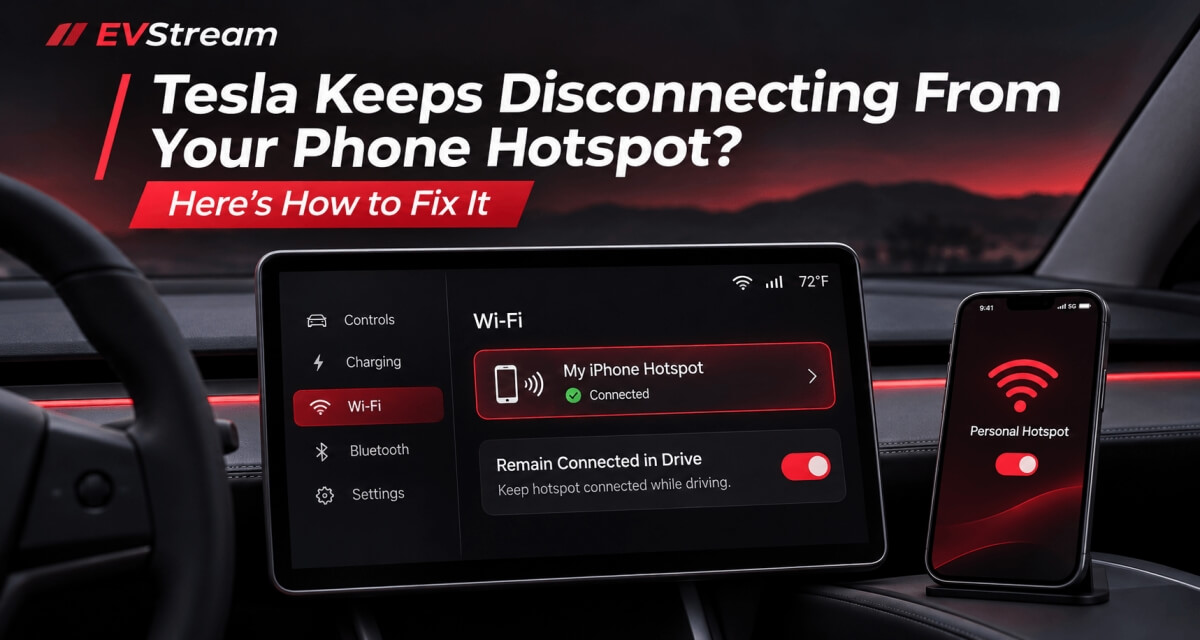
One setting decides whether the link survives the shift into Drive.
Or maybe your Tesla connects to the hotspot but keeps losing the connection, even when your phone is right there in the car.
If this sounds familiar, there's good news. Tesla actually has a setting designed to keep your hotspot connected while the vehicle is in Drive.
And if that doesn't solve the problem, there are a few other things worth checking before blaming your phone or your car.
Here's where to start.
Why Does Tesla Disconnect From Your Phone Hotspot?
Tesla doesn't always treat Wi-Fi connections the same way as your phone or laptop.
Your car may disconnect from Wi-Fi when you shift out of Park, unless you've enabled the setting that keeps the connection active.
This behavior makes sense for home Wi-Fi networks. Once you leave your driveway, the router is no longer in range.
But a phone hotspot is different.
Your phone is probably sitting right next to you, so there's no reason to lose the connection simply because the car has started moving.
That's why Tesla includes an option called Remain Connected in Drive.
It's the first thing you should check.
Fix 1 - Enable Remain Connected in Drive
If your Tesla hotspot disconnects whenever you shift into Drive, start here.
Tesla officially supports keeping a mobile hotspot connected while the vehicle is in Drive or Reverse.
Here's how to enable it:
- Turn on the hotspot on your phone.
- On your Tesla touchscreen, open Controls > Wi-Fi.
- Select your phone's hotspot from the available networks.
- Connect using your hotspot password if needed.
- Select the connected hotspot in the Wi-Fi settings.
- Enable Remain Connected in Drive.
That's it.
Your Tesla should now be configured to maintain that Wi-Fi connection when you shift into Drive.
The exact appearance of the settings menu may vary depending on your Tesla model and software version, but the feature is documented by Tesla.
You can also find these instructions in Tesla's official Wi-Fi support guide.
One important detail: this setting keeps the internet connection active. It doesn't change Tesla's video safety restrictions or make watching video while driving appropriate.
Fix 2 - Check Your Phone's Hotspot Settings
If you've already enabled Remain Connected in Drive but the connection still drops, check your phone next.
The steps depend on whether you're using an iPhone or Android.
If You're Using an iPhone
Open your iPhone settings and check the following:
- Go to Settings > Personal Hotspot.
- Make sure Allow Others to Join is enabled.
- Confirm that mobile data is working.
- Check that your Tesla is connected to the correct hotspot name.
- Turn Personal Hotspot off and back on if the connection is stuck.
If your Tesla struggles to find or connect to the hotspot, you can also try enabling Maximize Compatibility.
This option can help with compatibility between your iPhone's hotspot and some devices, although it may reduce connection performance.
You don't need to leave it enabled if your hotspot works normally without it.
If You're Using Android
Android phones can have slightly different hotspot settings depending on the manufacturer.
Look for Hotspot & Tethering, Mobile Hotspot, or a similar option in your phone's settings.
Check that:
- Your mobile hotspot is enabled.
- Mobile data is working.
- Your Tesla is connected to the correct network.
- The hotspot password hasn't changed.
- Any automatic hotspot shutdown setting isn't turning it off unexpectedly.
Some Android phones can automatically turn off their hotspot when no device is connected.
If you notice the hotspot itself disappears, rather than just disconnecting from the Tesla, this is worth investigating.
Fix 3 - Forget the Hotspot and Connect Again
Sometimes a previously saved Wi-Fi connection simply stops behaving correctly.
If your Tesla keeps trying to reconnect and failing, removing the saved connection is worth trying.
While parked:
- Open Controls > Wi-Fi on your Tesla.
- Find your phone's hotspot in the saved networks.
- Select Forget Network.
- Make sure the hotspot is enabled on your phone.
- Find it again in the Tesla Wi-Fi list.
- Enter the password and reconnect.
- Check Remain Connected in Drive again.
This creates a fresh connection instead of relying on the previously saved settings.
Tesla also recommends forgetting and reconnecting to a Wi-Fi network as one of its troubleshooting steps.
Fix 4 - Check Your Phone's Mobile Signal
There's an important difference between your Tesla losing its Wi-Fi connection and your phone losing internet access.
Your Tesla might still show that it's connected to the hotspot, but websites don't load.
That doesn't necessarily mean the Wi-Fi connection has dropped.
Your phone may simply have a weak mobile data signal.
For example, you might have a strong Wi-Fi connection between your Tesla and phone, but your phone itself only has a weak 4G or 5G connection.
The result can look very similar:
Websites stop loading, streaming pauses, or apps report that they're offline.
To check this, try opening a website directly on your phone using mobile data.
If the website is also slow on your phone, the problem is probably with the cellular connection rather than the Tesla.
Try again somewhere with better mobile coverage.
Fix 5 - Restart Wi-Fi on Your Tesla
If your phone's internet works normally but Tesla still won't connect, try restarting the car's Wi-Fi connection.
You don't need to reboot the entire vehicle immediately.
Start by:
- Opening the Wi-Fi settings on your Tesla.
- Turning Wi-Fi off.
- Turning it back on.
- Selecting your hotspot again.
Tesla includes this in its official troubleshooting recommendations.
If the issue continues, restarting the touchscreen may also help.
You can find the appropriate procedure for your vehicle in Tesla's owner's manual.
Fix 6 - Try Another Phone or Wi-Fi Network
This is one of the best ways to find out where the problem is coming from.
If possible, connect your Tesla to another phone's hotspot.
If your Tesla works perfectly with the second phone, the issue may be related to the original phone's hotspot settings or cellular connection.
But if your Tesla keeps disconnecting from multiple hotspots, it's worth looking more closely at the car's Wi-Fi settings or software.
You can also test your phone's hotspot with another device.
For example, connect a laptop or tablet to the same hotspot.
If that device also keeps losing the connection, you've learned something useful.
The problem may not be your Tesla at all.
What If the Hotspot Connects but Tesla Browser Doesn't Work?
This is a different problem, and it's worth separating the two.
If your Tesla shows that Wi-Fi is connected but websites won't open, first check whether the hotspot actually has internet access.
If regular websites load correctly but a particular video doesn't play, the problem might be related to browser compatibility instead.
Tesla's browser can behave differently from Chrome, Safari, or other browsers on your computer or phone.
We've covered this in more detail in our guide: Tesla Browser Video Not Playing? Common Causes and Fixes
And if you're using your phone's hotspot because you don't subscribe to Premium Connectivity, read Can You Use the Tesla Browser Without Premium Connectivity?
That article explains which Tesla browser features can work over Wi-Fi and what you need to get connected.
Using Your Phone Hotspot With EVStream
If you use EVStream for YouTube, Live TV, movies, or series in your Tesla browser, a stable internet connection makes a big difference.
EVStream runs directly in the browser, so you don't need to install anything on your Tesla.
Once your car is connected to your phone's hotspot, you can open evstream.app. For YouTube, go to evstream.app/youtube. Or, if you already have your own IPTV provider, open evstream.app/connect.
You don't need Tesla Premium Connectivity to access EVStream when your Tesla browser has a working Wi-Fi connection.
If your hotspot disconnects, though, EVStream may lose access to the internet just like any other website.
That's why getting the hotspot connection stable is important.
EVStream can help with certain browser playback compatibility problems, but it can't repair a Wi-Fi connection that's dropping between your phone and Tesla.
If you're looking for more useful things to access through the browser, check our guide to the best Tesla browser apps and websites.
What If Streaming Keeps Buffering?
Sometimes your hotspot stays connected, but video playback constantly freezes or stops to load.
That's not necessarily a hotspot disconnection.
The connection may be active but too unstable to deliver video consistently.
This can happen because of a weak mobile signal, network congestion, or a problem with the streaming service itself.
If you're using IPTV, try another channel to see whether the problem affects everything or only one particular stream.
You can find more troubleshooting steps in our guide: IPTV Keeps Buffering? Common Causes and How to Fix It
The important thing is to identify whether you're losing the internet connection or the video is simply struggling to play.
Those are two different problems.
Frequently Asked Questions
Why does my Tesla disconnect from Wi-Fi when I shift into Drive?
Tesla may disconnect from Wi-Fi when shifting out of Park unless the connection is configured to remain active.
To keep using your phone's hotspot, open the Tesla Wi-Fi settings, select the hotspot, and enable Remain Connected in Drive.
How do I keep my Tesla connected to my iPhone hotspot?
First, make sure Personal Hotspot is enabled on your iPhone.
Then connect your Tesla to the hotspot and select Remain Connected in Drive in the vehicle's Wi-Fi settings.
If the connection still fails, try reconnecting and checking your iPhone's hotspot compatibility settings.
Why does my Tesla hotspot keep disconnecting even when parked?
If the connection drops while parked, the Remain Connected in Drive setting probably isn't the cause.
Check your phone's hotspot settings, Wi-Fi signal, mobile data connection, and whether the hotspot is turning off automatically.
Forgetting the saved network and connecting again may also help.
Does Tesla automatically reconnect to my phone hotspot?
Tesla can automatically reconnect to previously saved Wi-Fi networks when they're available.
However, the hotspot needs to be active and discoverable, and reconnecting behavior can depend on your phone and vehicle settings.
Do I need Premium Connectivity to use my phone hotspot?
No.
You can connect your Tesla to a phone hotspot over Wi-Fi without subscribing to Tesla Premium Connectivity.
Your mobile carrier's data and hotspot restrictions still apply.
Can I use EVStream through my phone hotspot?
Yes.
If your Tesla browser has a working internet connection through your hotspot, you can access EVStream directly at evstream.app.
You can use its YouTube player or connect your existing IPTV provider.
Final Thoughts
If your Tesla keeps disconnecting from your phone hotspot, start with Remain Connected in Drive.
It's a simple setting that can make a big difference, especially if your connection drops as soon as you shift out of Park.
If that doesn't solve it, check your phone's hotspot settings, reconnect the Wi-Fi network, and test another device or connection.
You don't need to change everything at once.
Start with the most likely cause and work from there.
And once your Tesla browser has a stable internet connection, you can use it for YouTube, your existing IPTV provider, and other browser-based entertainment through EVStream.
Visit evstream.app to get started.
Always make changes to connectivity and entertainment settings while safely parked. Drivers should never watch or interact with video content while driving.
Open your Tesla browser and try it today
Charge your car. Stream your favorites.
Launch EVStream.app