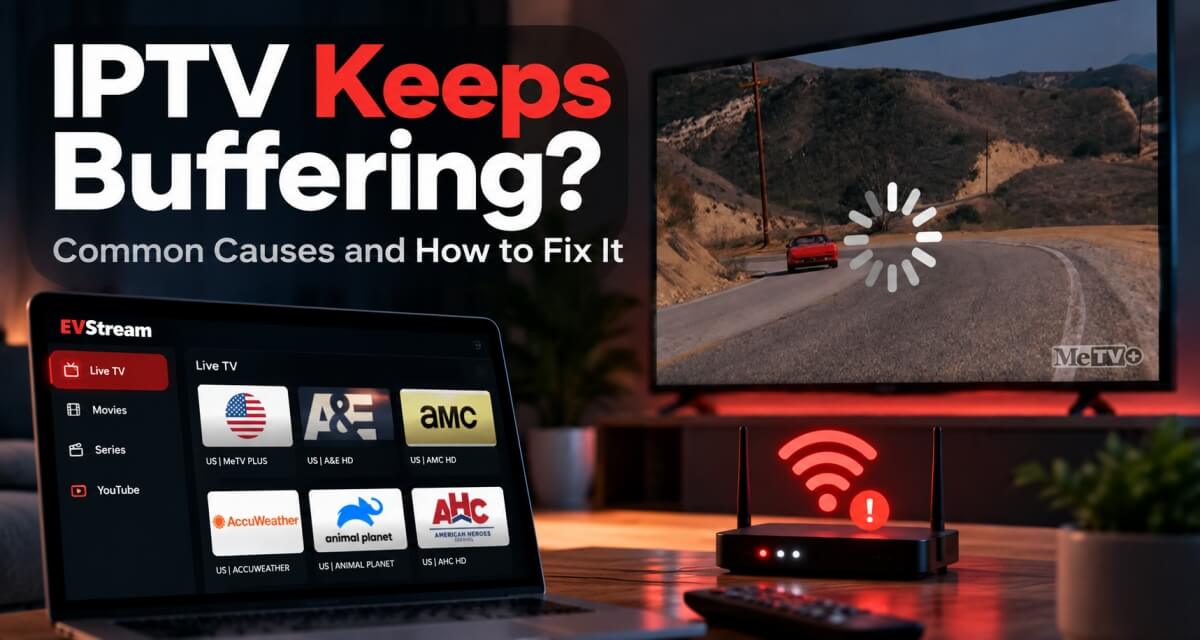
IPTV Keeps Buffering? Common Causes and How to Fix It
October 6, 2026 · 9 min read
You're watching IPTV and everything seems fine.
Then the picture freezes.
A few seconds later it starts again.
Then it freezes again.
Or maybe you spend more time looking at the loading spinner than actually watching the channel.
Playback stops when the stream stops arriving fast enough to stay ahead.
IPTV buffering is frustrating, but the cause isn't always obvious. It could be your internet connection, Wi-Fi signal, IPTV provider, device, browser or even the player you're using.
The important thing is not to start changing random settings.
Instead, you can usually narrow down the problem with a few simple tests.
Here's what to check.
Why Does IPTV Keep Buffering?
Buffering happens when your player isn't receiving or processing the video fast enough to keep playback running smoothly.
That sounds simple, but there are several reasons it can happen.
The most common ones are:
- An unstable internet connection
- Weak or crowded Wi-Fi
- An overloaded IPTV server
- Problems with one particular channel
- A device that is struggling with the stream
- Browser compatibility issues
- The IPTV player itself
- VPN or network routing problems
The first step is figuring out which one applies to you.
Your Internet Can Be Fast and IPTV Can Still Buffer
One of the most common questions is:
"My internet is fast, so why does IPTV still buffer?"
Because internet speed is only part of the story.
You might run a speed test and get 300 Mbps, but that doesn't necessarily mean your connection is stable every second.
Live IPTV needs a steady stream of data.
Short connection drops, Wi-Fi interference, packet loss or network congestion can cause playback to stop even when your overall internet speed looks excellent.
This is why someone with a stable 50 Mbps connection can sometimes have a better IPTV experience than someone with a much faster connection that keeps dropping for a moment.
Check Your Wi-Fi Connection
If you're using Wi-Fi, start there.
Try moving closer to your router and play the same channel again.
If possible, test the same IPTV stream using an Ethernet connection or another Wi-Fi network.
You can also try your phone's mobile hotspot.
If IPTV buffers constantly on your home Wi-Fi but works perfectly through mobile data, the issue may be related to your home network rather than the IPTV service itself.
We have a separate troubleshooting guide for exactly that situation: IPTV Not Working on Wi-Fi but Works on Mobile Data?
Testing another network is one of the quickest ways to narrow down a buffering problem.
Try Another Channel
Don't assume the whole IPTV service is having problems because one channel keeps buffering.
Try several channels.
If every channel buffers, the problem could be your internet connection, device, player or the provider's entire service.
But if most channels work perfectly and only one or two keep freezing, the problem is much more likely to be related to those particular streams.
IPTV providers may get different channels from different sources, and those streams don't always perform the same way.
You may also notice that one sports channel struggles during a major event while other channels continue working normally.
That's useful information.
The IPTV Provider's Server Could Be Overloaded
Sometimes the problem isn't on your side at all.
Your IPTV provider needs enough server capacity and bandwidth to deliver streams to everyone watching.
If their servers become overloaded, you can have perfect internet and a powerful device and still experience buffering.
A common clue is when IPTV works well during most of the day but becomes worse during busy evening hours or major sporting events.
Try the same channel again later.
You can also test other channels from the same provider.
If the problem appears across multiple devices and networks at the same time, your provider may be the source.
In that situation, changing your router settings probably isn't going to help.
Restart Your Router and Device
It's simple, but worth doing.
Restart your router and the device you're watching IPTV on.
Routers can develop temporary network problems, and devices can end up with background processes or browser issues that affect playback.
You don't need to restart everything every time IPTV buffers, but if the problem suddenly appeared after working normally before, it's an easy test.
Try Another Device
This is another useful way to isolate the problem.
Let's say IPTV keeps buffering on your TV.
Try the same channel and IPTV account on your laptop or phone.
Keep both devices on the same network.
If the second device plays smoothly, your internet connection and IPTV provider are probably fine.
The issue may be related to the original device or player.
If both devices buffer in exactly the same way, look more closely at the network or IPTV provider.
The Device Can Matter
Not every device handles IPTV streams equally well.
A modern laptop or phone may play a stream without any trouble while an older TV, browser or built-in device struggles with it.
The stream might use a format that requires more processing power, or the device's browser may not support it as well.
This can be especially noticeable with older browser versions and embedded browsers found in TVs and vehicles.
If IPTV works perfectly on one device but buffers on another, don't immediately blame your internet connection.
The device itself may be part of the problem.
Can the IPTV Player Cause Buffering?
Yes, sometimes.
Different IPTV players can handle the same stream differently.
If a channel buffers constantly in one player but works smoothly in another, the player or its playback method may be part of the issue.
This is especially relevant when watching IPTV in a browser.
Different providers use different stream formats and playback methods, and normal browser playback doesn't always handle every stream in exactly the same way.
This is one of the reasons we built EVStream with additional compatibility handling.
EVStream also includes Flex Mode, which provides alternative playback methods for browsers and devices where normal playback may not work as well.
That doesn't mean changing players can fix every buffering problem.
If your internet connection is unstable or your IPTV provider's server is overloaded, no player can create bandwidth that isn't there.
But if the problem is happening at the browser or player level, changing how the stream is handled can make a real difference.
If you want to learn more about what matters when choosing a player, read our guide to the best IPTV player for browser streaming.
Try the Same IPTV Stream in EVStream
One easy test is to try the same IPTV account in another player.
With EVStream, you can connect your existing IPTV provider directly from your browser.
Open evstream.app/connect, enter the Xtream Codes details supplied by your IPTV provider and try the same channel.
If you're not sure how to connect your provider, our Xtream Codes setup guide explains it step by step.
Then compare the results.
If the stream works smoothly in EVStream but buffers in another player, you've learned that the original player or playback method may have been contributing to the problem.
If the stream buffers everywhere, including on different devices and networks, the problem is more likely to be the stream itself or the IPTV provider.
EVStream does not provide IPTV channels or subscriptions. You connect your own IPTV provider and EVStream handles the player.
What About a VPN?
A VPN can sometimes change how your connection reaches an IPTV server.
That means it can occasionally improve a routing problem.
It can also do the opposite.
A slow or distant VPN server can add latency and reduce your connection speed, making buffering worse.
So don't treat a VPN as a guaranteed IPTV buffering fix.
If you're already using one, try IPTV once with the VPN enabled and once without it.
Compare the results.
That's much more useful than assuming one option will always be better.
Video and Audio Problems Aren't Always Buffering
It's also worth separating buffering from other playback problems.
If the video plays smoothly but there is no sound, that's probably not a buffering issue.
The browser may simply have trouble with the audio format used by that particular IPTV channel.
We explain that problem in detail here: IPTV Has Video but No Sound in Your Browser? Here's Why and How to Fix It
The same idea applies to other playback problems.
Freezing, missing audio, black screens and connection errors can look related, but they can have completely different causes.
How to Find the Cause of IPTV Buffering Quickly
You don't need to change ten settings at once.
Try this instead.
Step 1 - Try another channel
If only one channel buffers, the stream itself may be the problem.
Step 2 - Try another device
If IPTV works on another device using the same network, look at the original device or player.
Step 3 - Try another network
Use mobile data or a phone hotspot. If buffering disappears, look at your home Wi-Fi or internet connection.
Step 4 - Try another player
If the stream works smoothly somewhere else, your original player may be struggling with it.
Step 5 - Check whether it happens at certain times
If buffering mainly happens during evenings or major events, the IPTV provider's server may be under heavier load.
Change one thing at a time.
That's the important part.
If you change the device, network, player and router settings all at once, you won't know what actually fixed the problem.
How to Reduce IPTV Buffering
Once you have an idea where the problem is coming from, the solution becomes much easier.
Depending on the cause, you can try:
- Moving closer to your Wi-Fi router
- Using Ethernet where possible
- Restarting the router
- Testing another network
- Closing unnecessary apps or downloads
- Trying another device
- Trying another IPTV player
- Updating your browser or device
- Testing with and without a VPN
- Contacting your IPTV provider if the problem follows the stream everywhere
There isn't one fix that works for every buffering problem.
The right fix depends on what's actually causing it.
Watching IPTV Directly in Your Browser
If you want to test IPTV without installing another application, a browser-based player makes that easy.
EVStream works directly from the browser on laptops, desktops, phones, tablets, Tesla browsers and other supported devices.
You can connect your IPTV provider and test the same account across different devices without installing a separate IPTV app each time.
If you're new to browser-based IPTV, you can read our guide on how to watch IPTV online without installing any apps.
Frequently Asked Questions
Why does my IPTV buffer every few seconds?
It could be an unstable network connection, weak Wi-Fi, an overloaded IPTV server, a device or player problem, or an issue with that particular channel.
Try another channel, device and network to see whether the buffering follows the stream.
Why is IPTV buffering when my internet is fast?
A fast speed test doesn't guarantee a stable connection.
Short connection drops, Wi-Fi interference, congestion and packet loss can still interrupt live video even when your maximum internet speed is high.
Why does only one IPTV channel keep buffering?
If other channels work normally, the problem may be with that particular stream rather than your internet connection.
Try the channel again later and compare it with other channels from the same provider.
Can changing IPTV players stop buffering?
Sometimes.
If the problem comes from how the player or browser handles the stream, another playback method may perform better.
If the source server or internet connection is the problem, changing players may not help.
Can EVStream fix IPTV buffering?
EVStream can help when buffering or poor playback is caused by browser compatibility or the way a stream is being handled.
EVStream includes additional compatibility handling and Flex Mode for situations where normal browser playback may struggle.
However, EVStream cannot fix an overloaded IPTV provider server or an unstable internet connection.
Does a VPN stop IPTV buffering?
Not always.
A VPN may help if there is a routing problem between your internet provider and the IPTV server, but it can also make buffering worse if the VPN connection is slow.
The best approach is to test both ways.
Final Thoughts
If your IPTV keeps buffering, don't immediately assume you need faster internet.
The problem could be your Wi-Fi, IPTV provider, device, browser or player.
Start with the easiest tests.
- Try another channel.
- Try another device.
- Try another network.
- Then try another player.
Those four tests can tell you a lot about where the problem actually is.
And if you want to test your existing IPTV provider directly from a browser, you can try it with EVStream.
Bring your IPTV provider. EVStream handles the player.
Open your Tesla browser and try it today
Charge your car. Stream your favorites.
Launch EVStream.app