New Features in Your EVStream Dashboard
November 13, 2026 · 5 min read
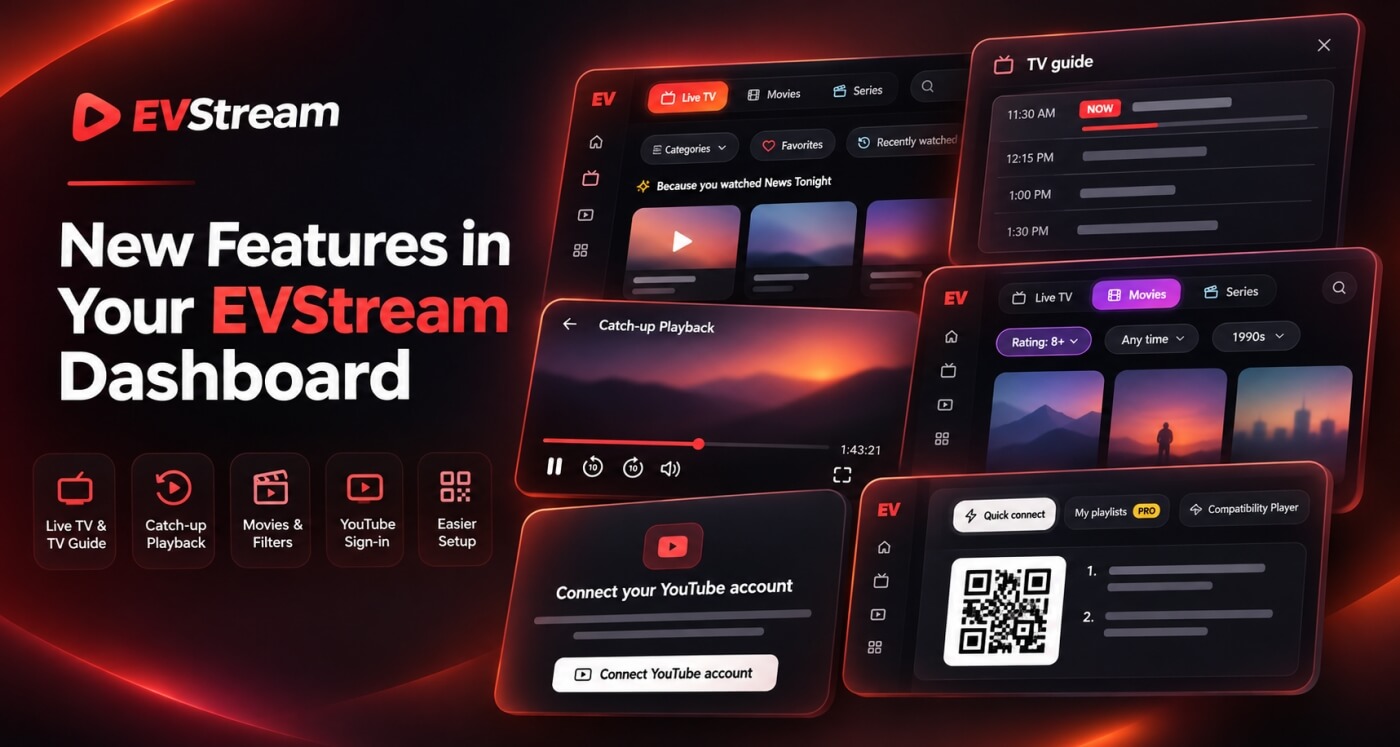
The EVStream dashboard just got a big update. Over the last few weeks we've added a TV guide, catch-up you can scrub through, suggestions, new filters and more, and most of it started as ideas you sent us. Here's what's new, what each feature does and where to find it.
What's New at a Glance
IPTV
TV Guide for Live Channels
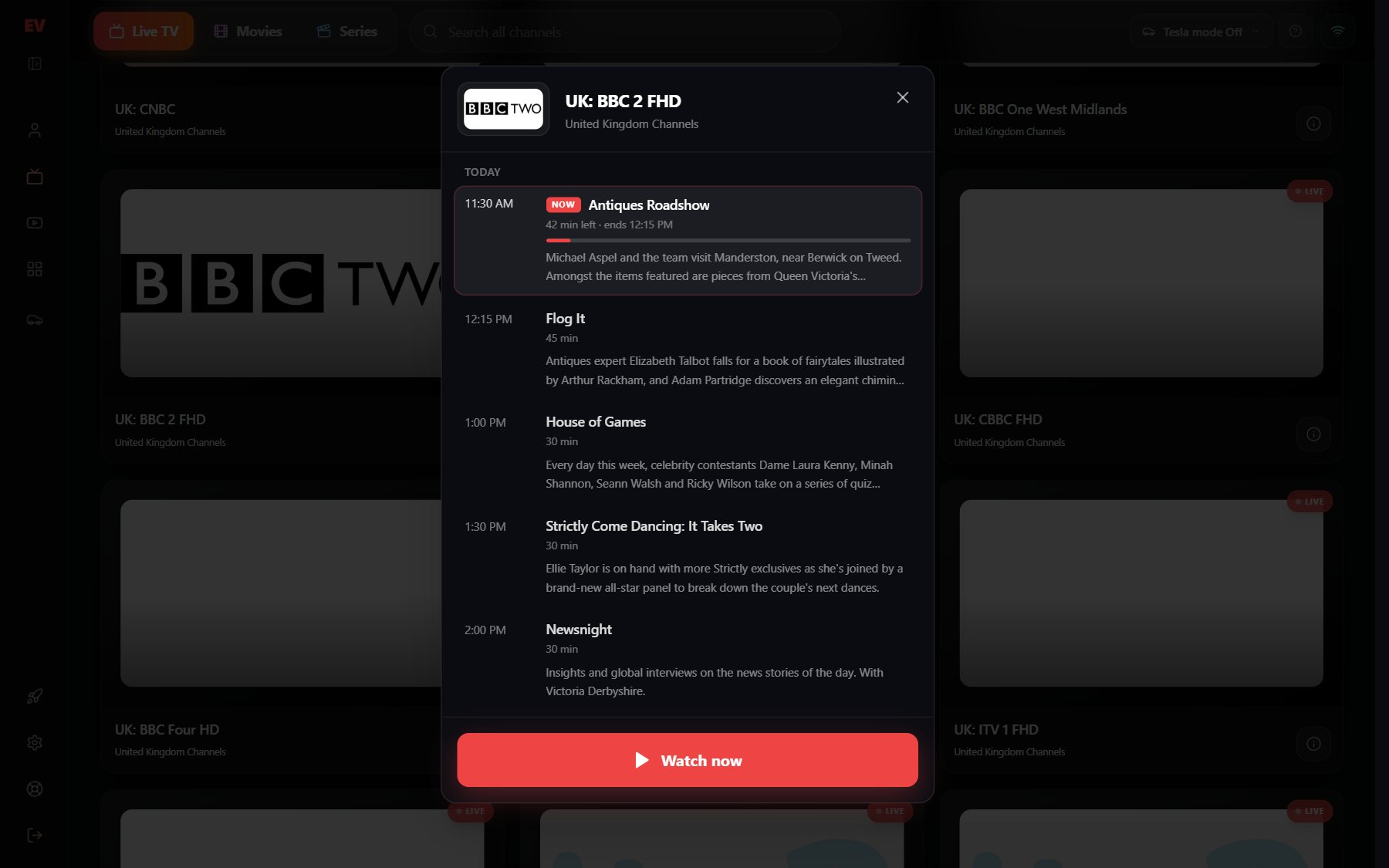
Live channels now show what's on. Tap the ⓘ button on a channel to open its TV guide: what's on right now, how much of it is left, and what's coming up after it. Found something? Watch now starts the channel straight from the guide.
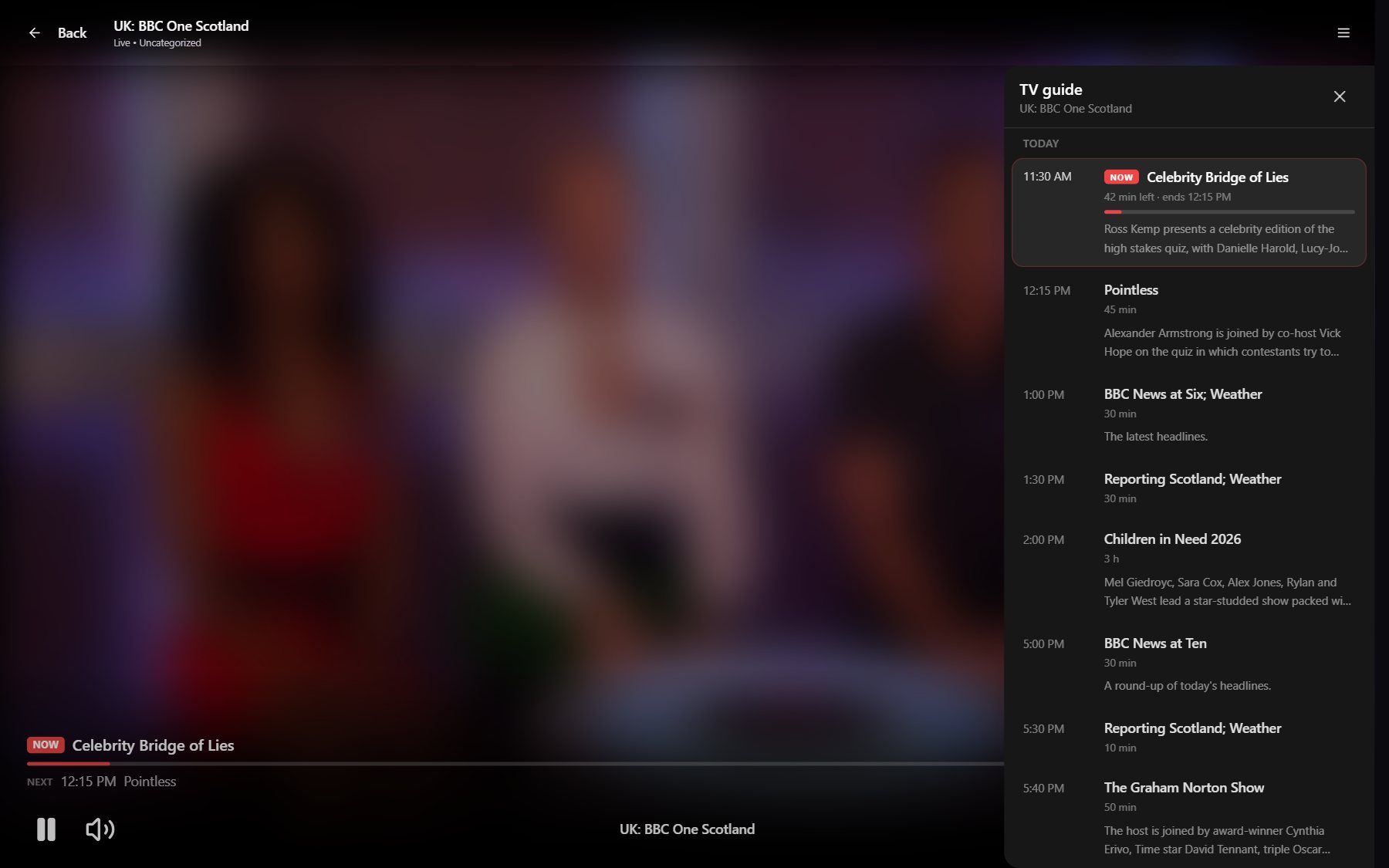
While you watch, Now & Next sits above the player controls, so you can see what's on and what starts next without leaving the channel. Tap TV guide to open the full list beside the picture.
The guide comes from your IPTV provider, so it appears on the channels your provider has a program guide for. It works with Xtream logins, and it's there for everyone, with or without Pro.
Where to find it: IPTV Player → Live TV → the ⓘ button on a channel card, or TV guide in the player.
Scrub Through Catch-UpPro
Catch-up shows now have a seek bar. Drag it to the exact minute you want, for example to skip past the ads, or use the 10-second buttons to jump back and forward. It works in Tesla mode too.
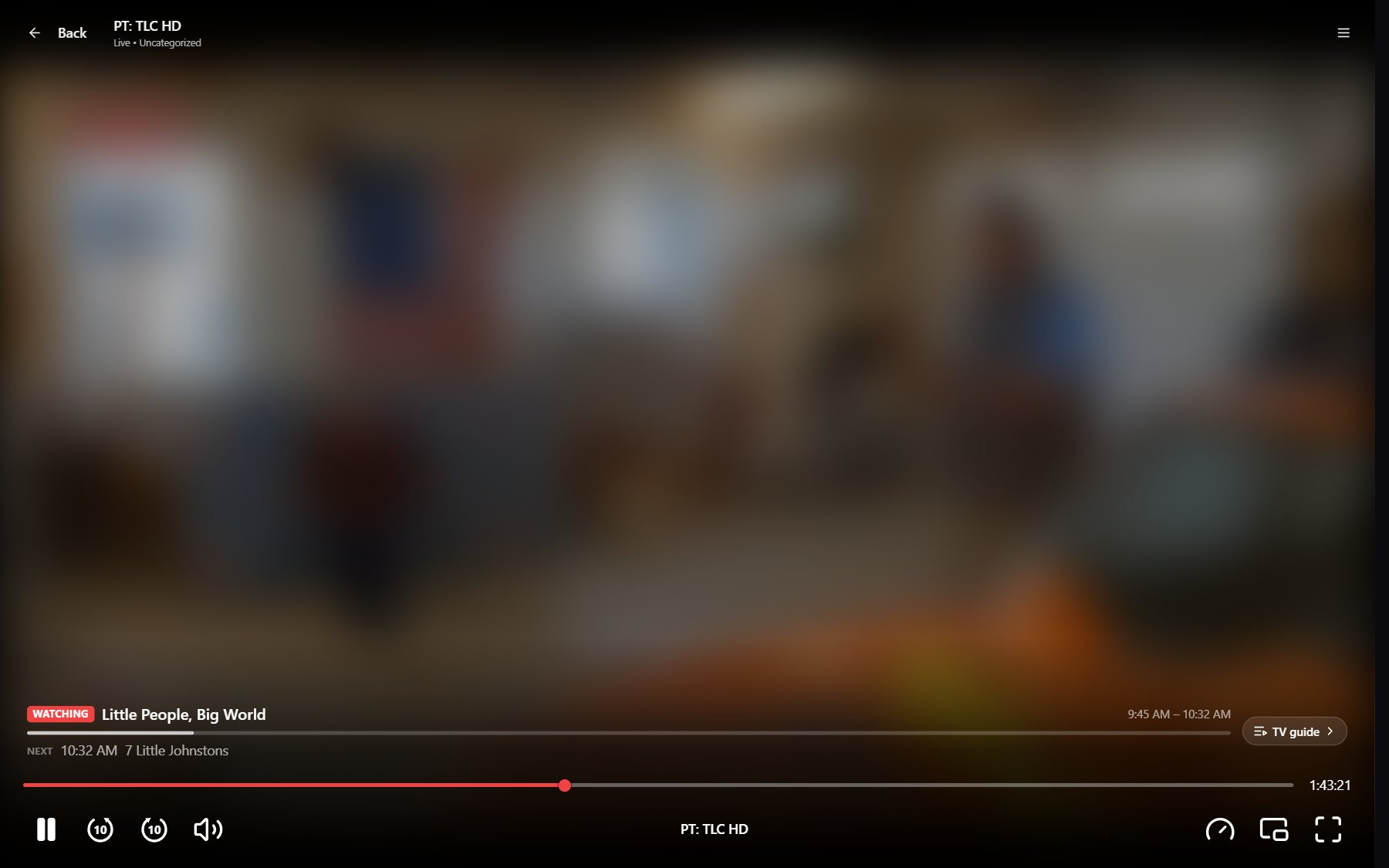
Where to find it: IPTV Player → Catch up → choose a channel and a program. Catch-up depends on your provider: the Catch up list shows the channels that have it, and for how many days.
Suggestions for YouPro
Not sure what to watch? Once you've watched something for a few minutes, a Because you watched… row appears above your channels, movies and series, with more like it: other channels from the same family, or movies and series from the same category with similar genres. The more you watch, the better it gets, and it becomes Suggestions for you.
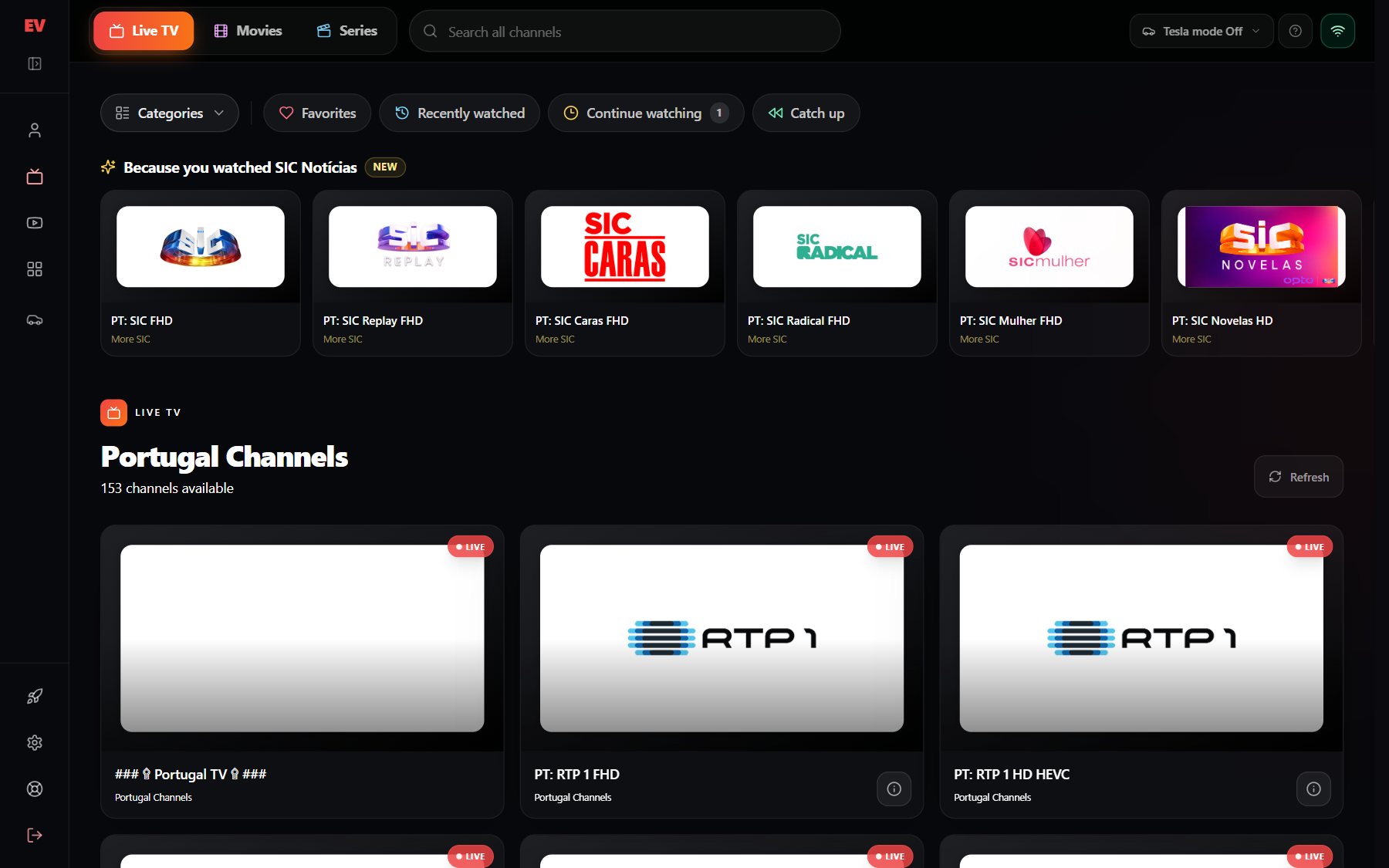
Suggestions are worked out from how long you watch, not just what you open. You can clear your watch history at any time from your Account page.
Where to find it: IPTV Player → Live TV, Movies or Series, above the list.
Top-Rated Movies and Series
Big playlists are hard to browse. The new Filters button searches your whole library at once, so you can find the highest-rated titles in it:
- Rating: 6+, 7+, 8+, 9+ or 10
- Added: in the last 7, 30 or 90 days
- Release year: by decade, from the 2020s back to older classics
- Genre: on Series
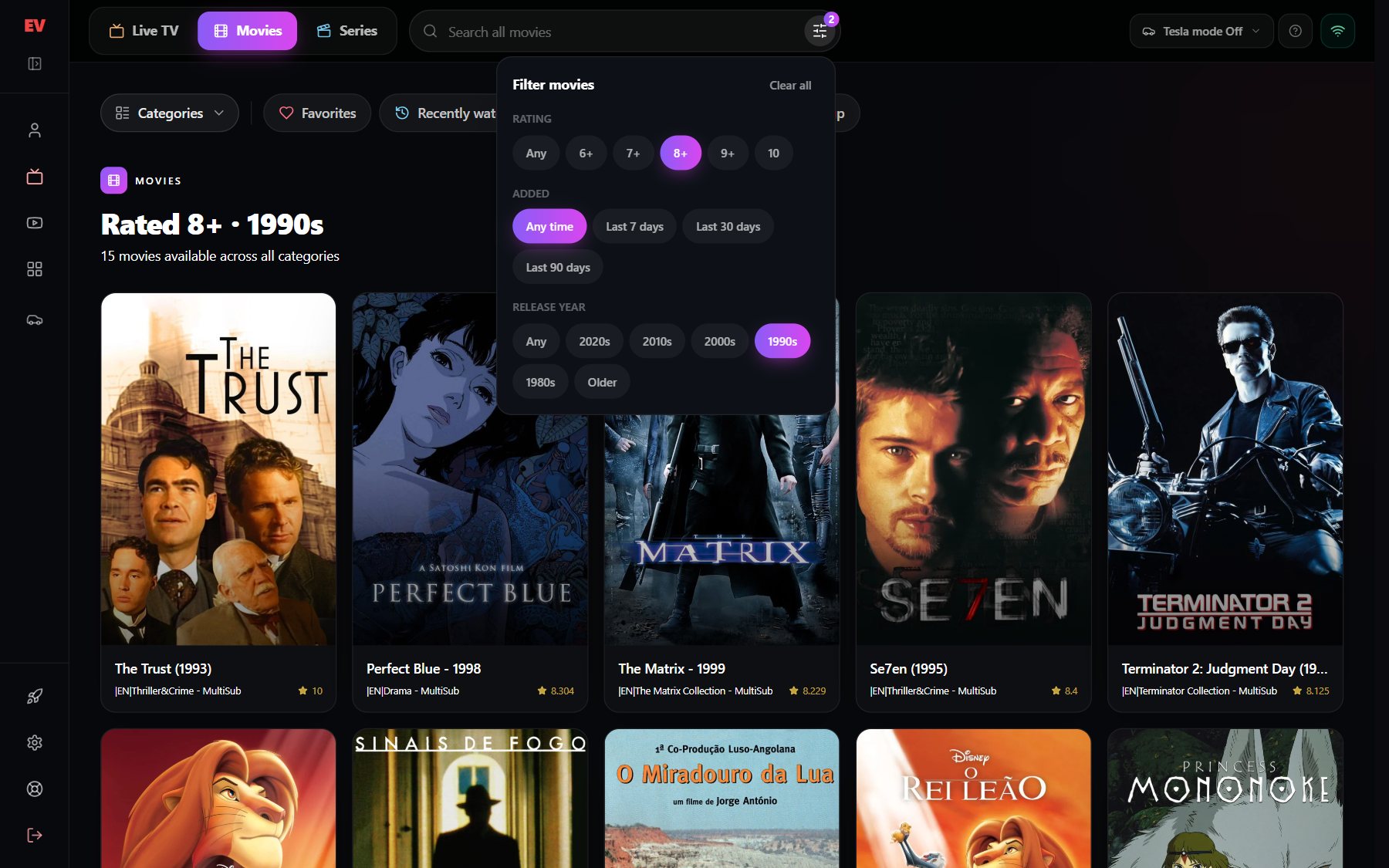
Ratings come from your IPTV provider.
Where to find it: IPTV Player → Movies or Series → the Filters button at the end of the search bar.
Easier Getting Started
Long IPTV passwords are hard to type on a car's touchscreen. Now you don't have to: tap Use my phone, scan the code with your phone's camera, type or paste your login on the phone and tap Send. The screen in your car connects by itself. Your phone doesn't need to be signed in.
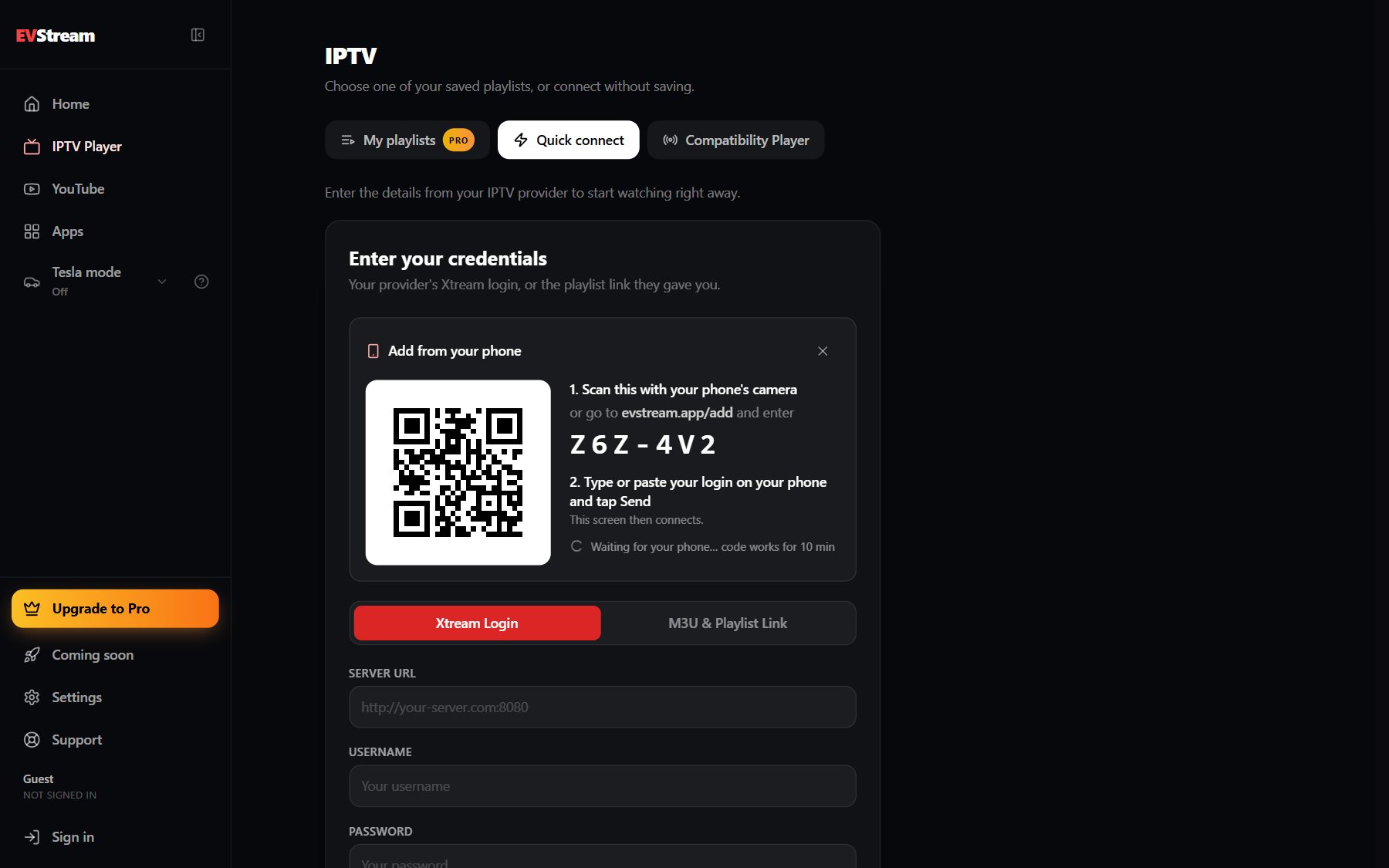
On a Pro account, a login sent from your phone is saved to My playlists as well, so next time it's one tap. The IPTV page also has clearer first steps, and Tesla mode is right there in the menu, wherever you are in the dashboard.
Where to find it: IPTV Player → Quick connect or My playlists → Use my phone.
Your Account
Your Settings on Every Device
There's a new Settings page in the menu. The first section, IPTV Playback, has:
- Movie position: top, center or bottom, for when the picture doesn't fill the screen, like on a phone held upright
- Captions text size: how big captions and subtitles are. It's the same setting as the CC button in the player.
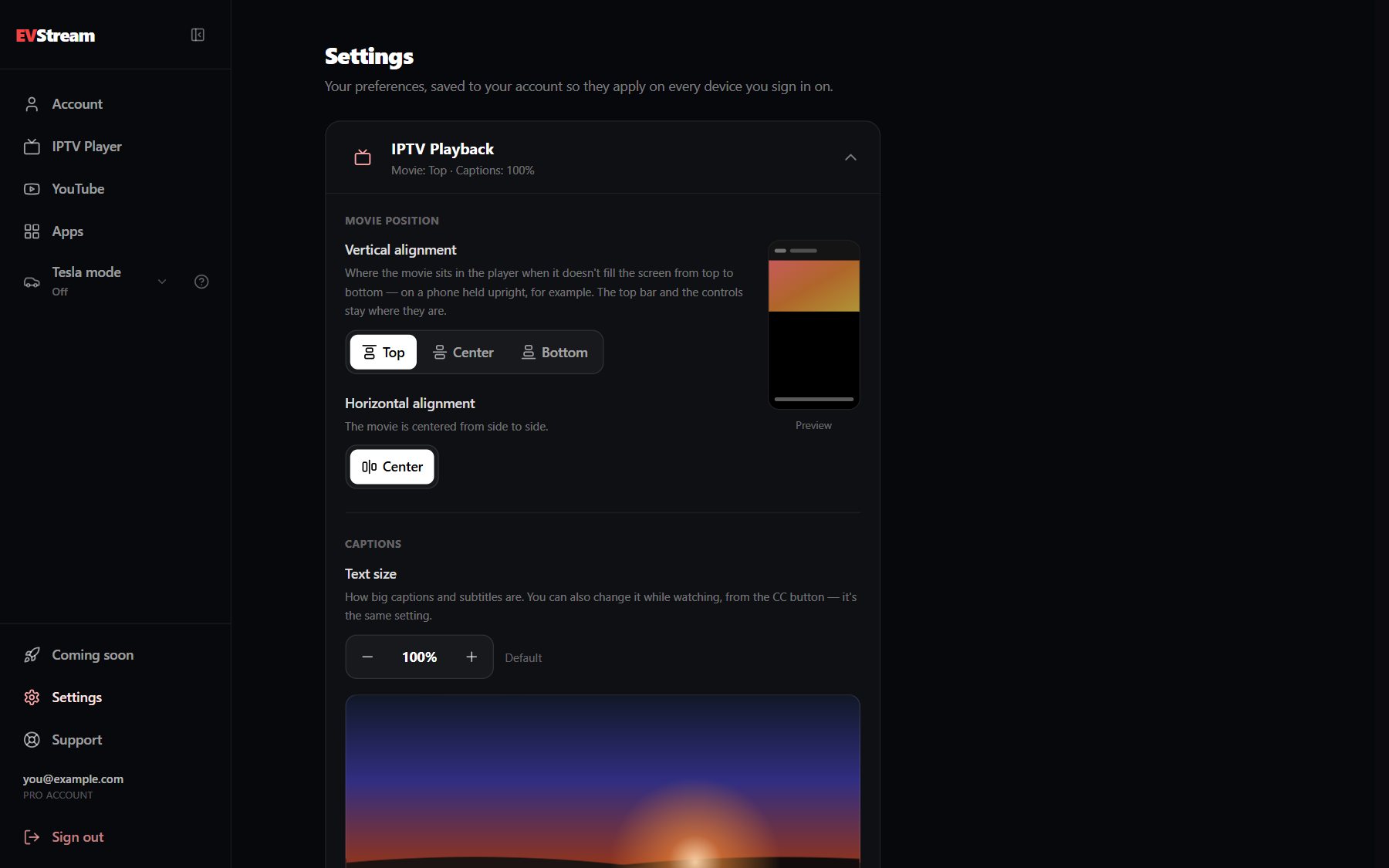
When you're signed in, your settings are saved to your account, so EVStream looks and works the same in your car, on your phone and on your computer. Without an account, they're kept on the device you're using. More settings are on the way.
Where to find it: The menu → Settings.
YouTube
Related Videos Improvements
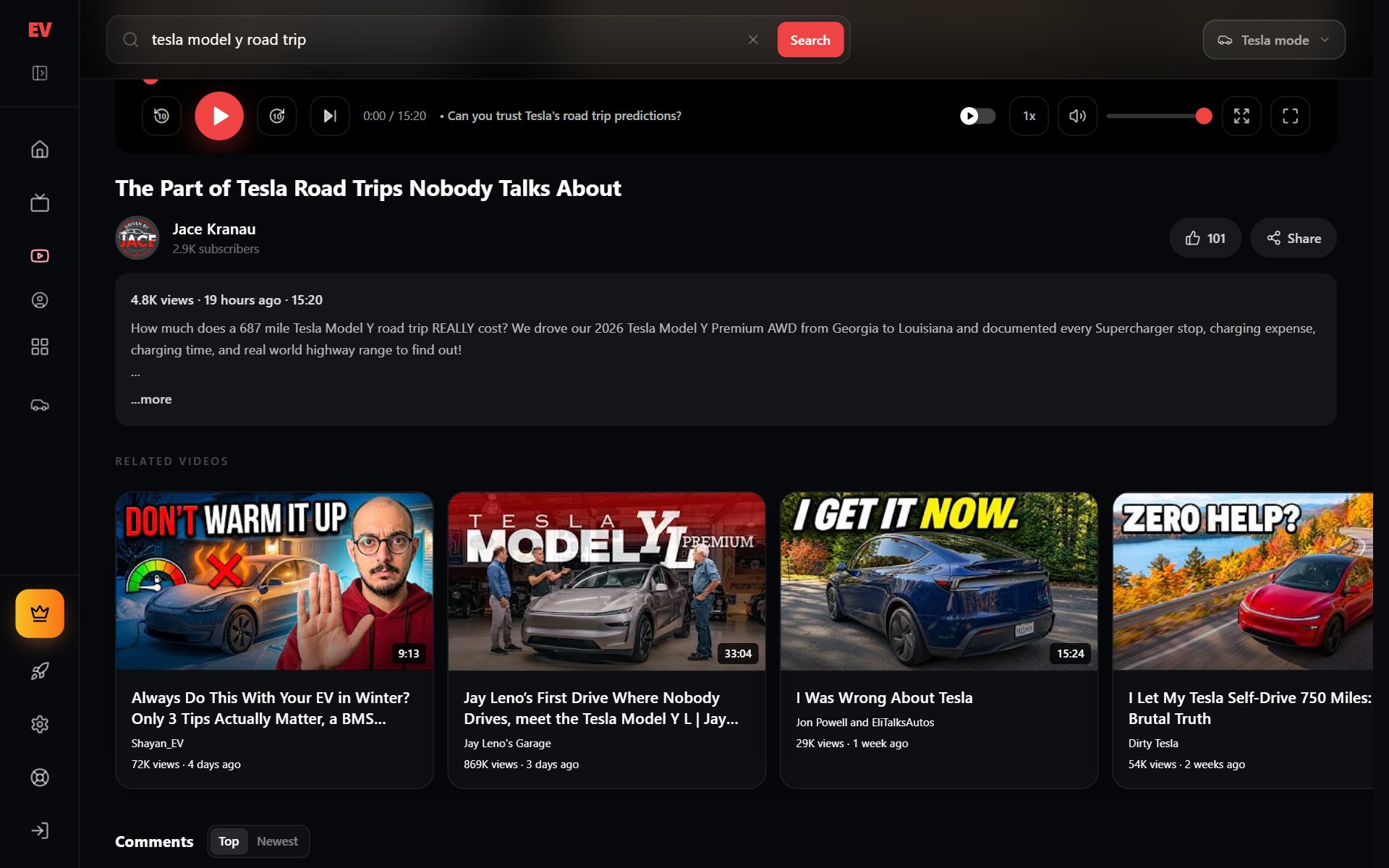
On smaller screens, including your Tesla's touchscreen, related videos used to sit at the very bottom of the page, under the comments. Now they're a row right under the video's details: swipe through them with your finger, or drag with the mouse.
Sign In with YouTube
Connect your own YouTube account and bring it with you: new videos from the channels you subscribe to, the videos you've liked and the playlists you've made, right in EVStream.
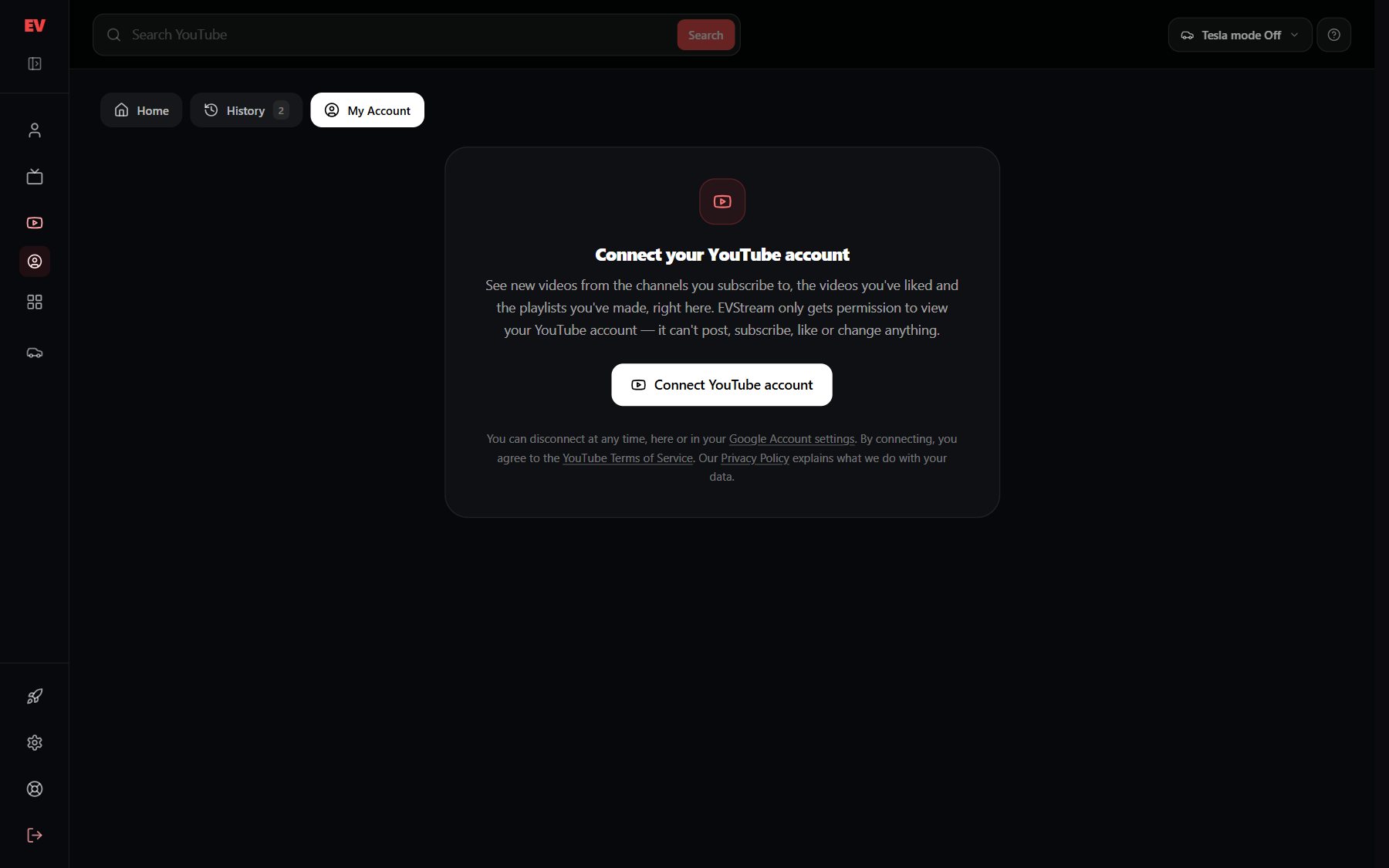
EVStream only gets permission to view your YouTube account. It can't post, subscribe, like or change anything, and you can disconnect at any time.
Where to find it: YouTube → My Account → Connect YouTube account. You need to be signed in to EVStream.
What's Next
We're not done. Multiple profiles is already in progress, so everyone in the family can have their own history, favorites and suggestions, and multi-screen viewing is planned. You can follow along on the Coming soon page.
Thank you for every idea and suggestion. Keep them coming!
Ready to try it? Open your dashboard, and if there's something you'd love to see next, tell us through Support.
Open your Tesla browser and try it today
Charge your car. Stream your favorites.
Launch EVStream.app