IPTV Not Working on Wi-Fi but Works on Mobile Data? Here's How to Fix It
October 6, 2026 · 8 min read
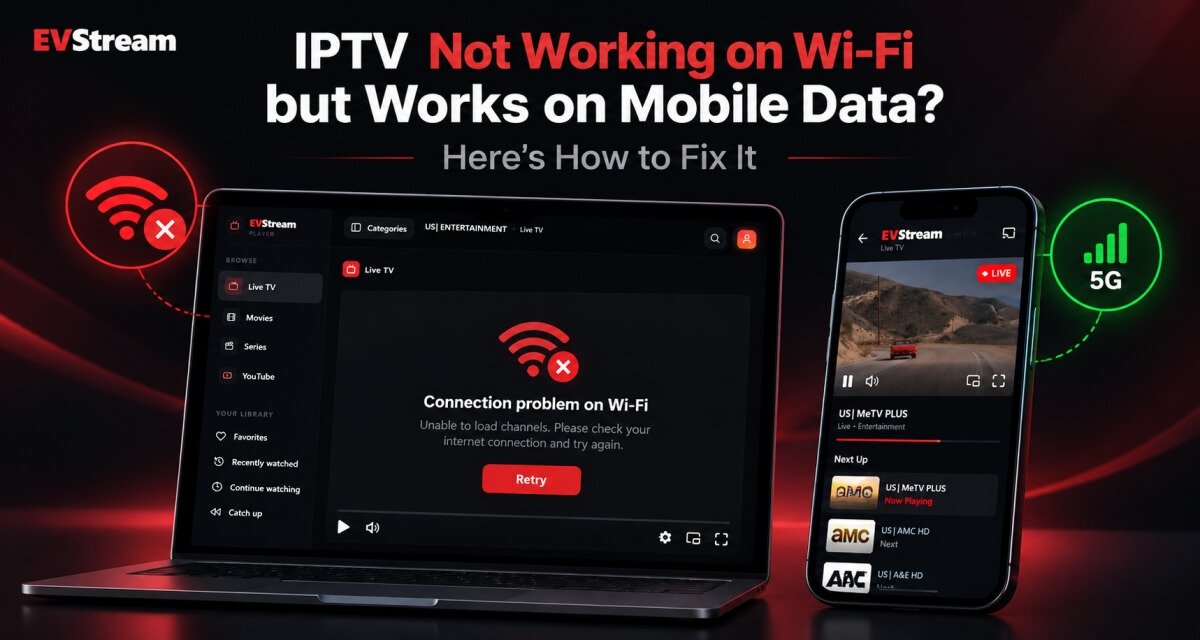
Your IPTV isn't working on home Wi-Fi.
You switch Wi-Fi off, try again using mobile data, and suddenly everything works.
The channels load. The stream starts. No problem.
So what's going on?
Home Wi-Fi
Nothing loads
Mobile data
Works straight away
Same account, same channel - only the network changed.
If IPTV works on mobile data but not on Wi-Fi, that's actually a very useful clue. It usually means your IPTV account itself is working, and the problem is more likely somewhere between your home network and the IPTV server.
That could be your router, DNS settings, your internet provider, or in some cases a restriction from the IPTV provider.
Let's go through the easiest ways to find the problem.
First, Make Sure It's Really a Wi-Fi Problem
Before changing any settings, do one simple test.
Connect to your home Wi-Fi and try opening the same IPTV channel.
If it doesn't work, turn Wi-Fi off and switch to mobile data.
Try the exact same channel again.
If it immediately starts working, you've already learned something important.
- Your IPTV credentials are probably correct.
- Your subscription is probably active.
- And the channel itself is probably available.
The main thing that changed was your internet connection.
That gives you a much better place to start troubleshooting.
Try More Than One Channel
Don't test only one channel.
Open a few different Live TV channels. If your provider includes movies or series, try one of those too.
If nothing works on Wi-Fi but everything works on mobile data, the issue is probably affecting the connection to your IPTV provider as a whole.
If most channels work and only one or two fail, you may be dealing with a different problem.
For example, if a channel has video but no audio, that's more likely to be a playback or audio compatibility issue. We have a separate guide explaining why IPTV can have video but no sound in a browser.
Restart Your Router
Yes, it's the obvious suggestion.
But it's worth doing before you start changing anything complicated.
Turn your router off, leave it off for a short time, and turn it back on.
Then reconnect your device and test IPTV again.
A router can sometimes end up with a bad connection, DNS problem, or temporary routing issue. Restarting it gives the connection a fresh start and can solve problems without any additional changes.
If it still doesn't work, move on.
Test IPTV Using Your Phone's Hotspot
This is one of the most useful tests you can do.
Instead of watching IPTV directly on your phone, enable your phone's mobile hotspot and connect another device to it.
For example:
- Turn on the hotspot on your phone.
- Connect your laptop, tablet, TV, or Tesla to the hotspot.
- Open the same IPTV player.
- Use the same IPTV account.
- Try the same channel.
If IPTV works through the phone hotspot but stops working as soon as you return to your home Wi-Fi, the device itself probably isn't the problem.
The IPTV player probably isn't the problem either.
The difference is the network.
This helps narrow things down very quickly.
Your DNS Settings Could Be the Problem
DNS is basically what helps your device turn a domain name into the address it needs to connect to.
Normally, your router or internet provider handles this automatically.
Most of the time you never have to think about it.
But if your IPTV provider uses a hostname such as:
exampleiptv.com
instead of a direct IP address, a DNS problem can stop your device from reaching that server correctly.
One simple test is to temporarily use another DNS provider on your device or router and see whether the IPTV server starts working.
If changing DNS fixes the problem, your IPTV account wasn't broken at all. Your original DNS service simply wasn't resolving or reaching the IPTV server correctly.
Don't change lots of network settings at once, though.
Change one thing, test IPTV, and then move to the next step if it still doesn't work.
That way you'll actually know what fixed it.
Your Router Could Be Blocking the Connection
Routers can have their own security settings, filters, parental controls, firewalls, or other features that affect certain connections.
This becomes more likely if:
- IPTV works on mobile data
- IPTV works on another Wi-Fi network
- Other websites work normally on your home Wi-Fi
- Only the IPTV service has a problem
If you recently changed routers or changed router settings, it's worth checking whether anything is being filtered.
You can also test using a different device on the same Wi-Fi.
If IPTV fails on your phone, laptop, tablet and TV while they're all connected to the same home network, that's another strong sign that the network itself is involved.
Your Internet Provider May Be Part of the Problem
Sometimes the problem can be further upstream.
Your internet service provider may use different DNS servers, network routes, filtering systems or security rules than your mobile provider.
That means the path from your home internet connection to the IPTV server can be completely different from the path used by your mobile connection.
This can explain situations where:
Home Wi-Fi -> IPTV doesn't connect
Mobile data -> IPTV works immediately
It doesn't automatically mean your ISP is intentionally blocking IPTV.
There can be routing problems, DNS problems or other network issues that create the same result.
That's why it's useful to test before jumping to conclusions.
The IPTV Provider Could Be Restricting Your IP
There is another possibility.
The restriction may come from the IPTV provider rather than your home internet provider.
Some services may limit access based on IP address, location, network, or the number of active connections.
For example, your mobile connection gives you a different public IP address from your home connection.
If the provider accepts one but rejects the other, IPTV could work perfectly on mobile data while failing on Wi-Fi.
If you've tested everything else and the problem clearly follows your home connection, contact your IPTV provider.
Tell them something simple:
"My IPTV account works on mobile data but doesn't connect when I use my home Wi-Fi. Can you check whether my home IP is being blocked or restricted?"
That gives them useful information instead of simply saying "IPTV doesn't work."
Check the Server URL and Port
It's also worth checking the connection details supplied by your IPTV provider.
If you use Xtream Codes, you'll normally have:
- Server URL
- Username
- Password
The server URL may also contain a port.
For example:
http://example.com:8080
Make sure you're using exactly what your provider gave you.
If the provider recently changed its server domain or port, an old address may behave unpredictably or stop working completely.
If you're not sure how these details work, our Xtream Codes setup guide explains the full setup step by step.
Try Another Device on the Same Wi-Fi
This is another easy way to narrow down the problem.
Let's say IPTV isn't working on your TV.
Try the same IPTV account on your phone or laptop while staying connected to the same Wi-Fi.
There are two possible results.
IPTV works on the second device
The problem is probably related to the original device, browser, app, or player.
IPTV fails on both devices
Now your home network becomes much more suspicious.
The more tests you do while changing only one thing at a time, the easier it becomes to find the real cause.
Try IPTV in a Browser
You can also test your IPTV provider using a browser-based player.
This is useful because you don't have to install another application just for troubleshooting.
EVStream allows you to connect your existing IPTV provider directly from a web browser using Xtream Codes or a supported playlist.
Open evstream.app/connect, enter your IPTV details and try the same provider.
Then test it once on your Wi-Fi connection and once using mobile data or a hotspot.
Because you're using the same player and the same device, changing only the network gives you a very clean comparison.
If you'd like to understand how browser-based IPTV works, you can also read our guide on watching IPTV online without installing any apps.
What If IPTV Works in One Player but Not Another?
If changing the network doesn't make a difference but changing the player does, you're probably dealing with something else.
Different IPTV players can handle streams differently.
Browser compatibility, stream formats, audio formats and playback methods can all affect whether a particular channel works properly.
This is something we've spent a lot of time working on with EVStream.
EVStream includes additional compatibility handling and alternative playback methods for streams that normal browser playback may struggle with.
If you're comparing your options, our guide to the best IPTV player for browser streaming explains what to look for.
A Quick Way to Find Where the Problem Is
If you don't want to spend hours changing settings, use this simple process.
IPTV doesn't work on Wi-Fi?
Try mobile data.
Works on mobile data?
Try a mobile hotspot with another device.
Works through the hotspot too?
Try another device on your home Wi-Fi.
Fails on every device using home Wi-Fi?
Now look at your router, DNS, ISP, or a possible IP restriction from the IPTV provider.
Fails on only one device?
Look at the device, browser, or IPTV player instead.
The goal isn't to randomly change settings until something works.
The goal is to find out exactly where the problem starts.
Frequently Asked Questions
Why does IPTV work on mobile data but not Wi-Fi?
If IPTV works on mobile data but fails on Wi-Fi, your IPTV account is probably working. The problem may be related to your home router, DNS, ISP routing, network filtering, or an IP restriction from your IPTV provider.
Can my internet provider block IPTV?
Network filtering is possible, but don't assume that's the cause immediately. DNS problems, routing problems and router settings can produce very similar symptoms.
Test the same IPTV service on mobile data, a hotspot and another Wi-Fi network before deciding where the problem is.
Why does IPTV work when I use my phone hotspot?
Your hotspot uses your mobile provider's internet connection instead of your home internet connection.
If IPTV works through the hotspot but not through your home Wi-Fi, that strongly suggests the problem is related to the home network or the route it uses to reach the IPTV server.
Should I change my DNS?
It's worth testing if everything else works normally but your IPTV server cannot be reached from your home connection.
If changing DNS solves the problem, you can then decide whether you want to keep using the alternative DNS service.
Is EVStream an IPTV provider?
No.
EVStream is an IPTV player.
You need your own IPTV provider and your own subscription. EVStream lets you connect that service and watch it directly from your browser.
Final Thoughts
IPTV working on mobile data but not on Wi-Fi can seem strange at first, but it's actually one of the easier problems to narrow down.
If the same account, channel and device work as soon as you switch networks, you already know a lot.
Start simple.
- Restart your router.
- Test another device.
- Try a mobile hotspot.
- Check your DNS.
Then, if necessary, contact your internet provider or IPTV provider with the results of those tests.
The important thing is to change one thing at a time.
And if you want an easy way to test your IPTV provider from different devices and networks without installing another app, you can connect it directly through EVStream.
Bring your IPTV provider. EVStream handles the player.
Open your Tesla browser and try it today
Charge your car. Stream your favorites.
Launch EVStream.app