EVStream YouTube Just Got a Major Upgrade
September 14, 2026 · 8 min read
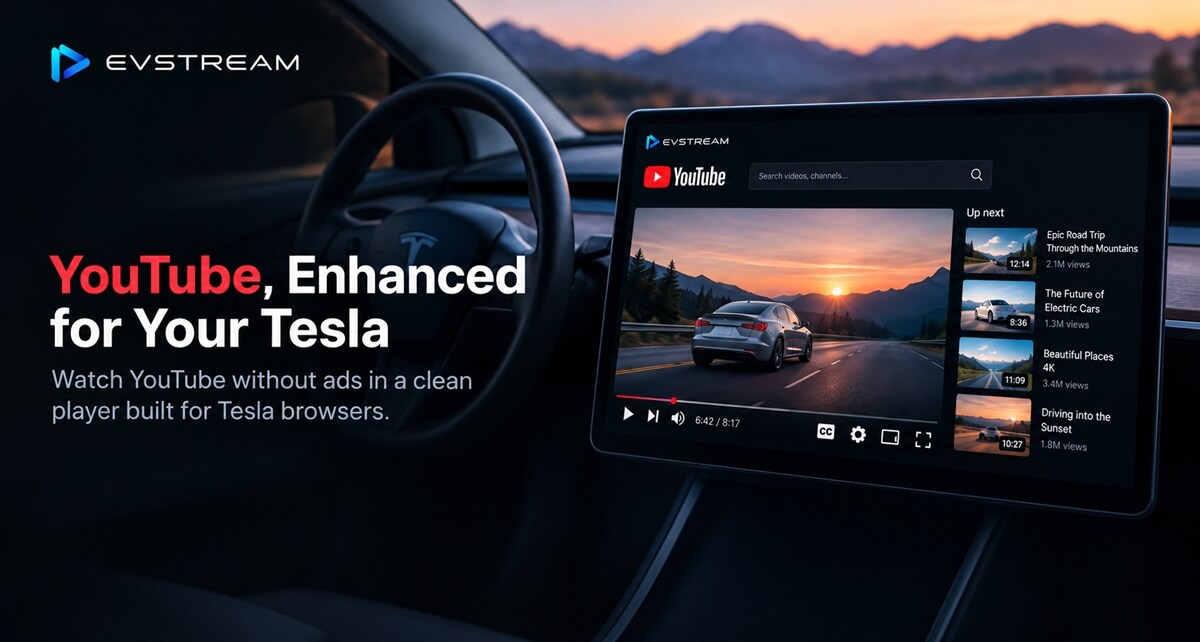
YouTube on EVStream started as a simple way to watch videos in your Tesla browser. With this update, it works a lot more like the YouTube you already know.
Search now suggests as you type. Videos have Previous and Next buttons, autoplay, chapters, comments and double-tap to skip. Channels have proper pages, playlists play the way they should, and the home page shows what's trending in the categories you care about.
And all of it is built for the screen in your car — including Flex Mode, which keeps video playing on the car screen in Drive.
Here's everything that's new at evstream.app/youtube.
Search That Works Like YouTube
Search is where most people start, so that's where we spent a lot of this update.
Suggestions while you type
As you type, suggestions appear under the search box — the same completions YouTube itself offers. The part you've already typed stays normal and the rest of each suggestion is in bold, just like on YouTube.
Your recent searches sit at the top of the list with a clock icon, and live suggestions appear below them. Tap any suggestion to search it straight away. On a keyboard, the Up and Down arrows move through the list, Enter searches the highlighted one, and Escape closes it.
What you typed stays plain, the rest of each suggestion is bold.
It works on desktop and on the phone layout, where the search field expands over the header. Suggestions also follow your browser's language.
Sort by Relevance or Newest
A Relevance | Newest toggle sits above your search results. Relevance is the default, like on YouTube, and every new search starts from it. Switch to Newest to see the most recently uploaded videos first. "Load more" keeps whichever order you picked.
Search filters
Next to the sort toggle there's a Filters button, with a badge showing how many filters are on:
- Upload date: Any time, Today, This week, This month, This year
- Duration: Any length, Under 4 minutes, 4–20 minutes, Over 20 minutes
- Live now: only streams that are live right now
Filters combine — "This week" plus "Over 20 minutes" is a good one for a longer charging stop — and they work together with Newest. "Clear filters" resets them, and a new search always starts without filters.
Channels in results, and results closer to YouTube
Search for a creator's name, like "MrBeast", and a matching channel row now appears above the videos, linking straight to their channel page.
We also reworked search results so they match what YouTube itself shows much more closely. Searching "probijam led", for example, now brings up the same top results as YouTube, including the official music video.
One honest caveat: YouTube tailors some broad searches, like "news", to where the viewer is and to their own account. So results for very general terms can still differ from what you see on your personal YouTube.
Your recent searches are also kept in the search dropdown and in the sidebar, so you can re-run one with a single tap.
A Much Better Way to Watch
Previous and Next buttons
Previous and Next buttons now sit on either side of the play controls, like on YouTube.
Next plays the next video from wherever you opened it: search results, a channel, Trending, your watch history or a playlist. When you reach the end of that list — or if there wasn't one — Next plays YouTube's own "Up next" pick from the related videos.
Previous goes back to the video you watched just before, and pressing it again keeps stepping back. Hover over either button to see the title of the video it will play.
Autoplay with an "Up next" countdown
There's now an Autoplay switch in the player controls. It's off by default, and your choice is remembered in the browser.
With autoplay on, when a video ends you'll see an "Up next in 5" card with the next video's thumbnail and title, plus Cancel and Play now buttons. Videos you open with Next, Previous or autoplay start playing on their own.
Double-tap to skip
On touch screens — your Tesla screen, or your phone — double-tap the right side of the video to jump forward 10 seconds, or the left side to jump back 10 seconds. A YouTube-style ripple shows "10 seconds" so you know it worked. A single tap in the middle plays or pauses.
With a mouse, a click plays or pauses and a double-click toggles full screen.
Keyboard shortcuts
On desktop, the familiar YouTube shortcuts work too:
Playback speed and captions
A speed menu lets you pick 0.25x, 0.5x, 0.75x, Normal, 1.25x, 1.5x, 1.75x or 2x. A CC button turns YouTube captions on or off. Both choices carry over to the next video during your visit.
These two are available in the normal player only — they're hidden while Flex Mode is on.
Chapters
If a creator has added chapters, they now show up as segments on the progress bar. The current chapter's name appears next to the time, and tapping it jumps to the start of that chapter. The full chapter list is in the description as well, where tapping any chapter jumps straight there.
Everything Under the Video
Channel line
The channel's profile picture, name and subscriber count sit under the video title, with the likes count next to it. Tap the channel name to open the channel page.
Share
A Share button gives you two options: Copy link, or Copy link at current time, which opens the video at the exact moment you were watching.
Full description, YouTube style
Views, upload date and length sit at the top. The description is collapsed to a few lines with "...more" and "Show less".
Timestamps like 2:15 are clickable and jump the video to that moment. Web links are clickable too, and links to other YouTube videos or channels open inside EVStream instead of taking you out of the app.
Comments
Comments now appear under the video. Sort them by Top or Newest, open reply threads with "N replies", load the rest with "Show more replies", and keep scrolling with "More comments". Long comments collapse behind "Read more", and timestamps inside comments are clickable as well.
If comments are turned off for a video, you'll see a clear message saying so. And because comments only load when you scroll down to them, they never slow down a video that's starting.
Comments are read-only for now. Posting, liking and replying need a YouTube account sign-in, which isn't available yet.
Related videos, expand and resume
Related videos sit in a column next to the player. You can expand the player to fill the app, or go browser full screen, without the video restarting. And watch history remembers where you stopped, so videos continue from that point.
A Home Page Worth Opening
Category chips
A row of chips now sits above Trending: All, Music, Gaming, News, Sports, Entertainment, Film & Animation, Comedy, Science & Tech and Autos & Vehicles. Each one shows what's trending in that category for your country. Pressing Home takes you back to "All".
Trending by country
Trending videos are shown for your country, and you can change the country right from the heading.
Continue watching
A Continue watching row on the home page lists videos you started but didn't finish, newest first, each with a red progress bar. Tap one to resume it — and Next carries on through the rest of that row.
Everything you've watched is also on the Watch history page, with progress bars and the option to remove videos.
Channels and Playlists
Channel pages
Every channel now has its own page, with banner, profile picture, name, handle, subscriber count and number of videos. Tabs cover Videos, Shorts (shown in a portrait grid), Live and Playlists. Tabs a channel doesn't use — say it has no Shorts — simply aren't shown.
The Playlists tab lists the channel's public playlists, each with its thumbnail and video count.
Playlist pages
Every playlist has its own page too: thumbnail, title, channel, number of videos, description and the full list of videos. A Play all button starts it from the first video.
A playlist panel while you watch
When you play from a playlist, the right-hand column shows a playlist panel above the related videos — just like on YouTube. It shows the playlist title, channel name and your position ("3 / 104"), with every video numbered alongside its thumbnail, length and channel.
Road Trip Mix
EVStream Picks · 3 / 104
Numbered, highlighted, and kept in view.
The video that's playing is highlighted and kept in view. You can collapse or expand the panel, and the X button leaves the playlist while the current video keeps playing. Tap any video in the panel to play it and continue the playlist from there, or just press Next to play through it in order.
While you're watching from a playlist, the page address includes it, like on YouTube. Refresh the page or open a shared link and the playlist panel comes back at the same position. "Back" returns you to the playlist page.
Flex Mode for YouTube
Flex Mode is designed to improve YouTube playback compatibility across different Tesla browsers, including older browser versions and older vehicles.
If normal playback does not work properly, you can enable Flex Mode and choose between three playback options:
- Standard — works across the widest range of cars and browsers
- Standard V2 — the default option where supported
- Enhanced — an alternative playback method for certain browser versions
For newer browsers with full media support, normal playback usually provides the best experience. Flex Mode is there when you need extra compatibility.
Previous and Next, autoplay, double-tap to skip, chapters, the description, comments and playlists all work while Flex Mode is on. The only exceptions are playback speed and captions, which are available in the normal player only.
Watching video while driving is for passengers only.
The driver should always keep their attention on the road and never interact with or watch video content while driving.
Finding It
YouTube now appears in the main menu, right next to IPTV, and in the sidebars of both the IPTV player and the YouTube page. The account menu has IPTV and YouTube entries too, with the section you're in highlighted.
What's Not Here Yet
There's no signing in with a Google or YouTube account yet. That means your YouTube subscriptions, likes, posting comments and your personal YouTube history aren't available in EVStream for now. A sign-in feature is planned for later.
Your EVStream watch history, Continue watching and recent searches work without it.
How to Try It
EVStream Pro members get full YouTube access, including Flex Mode. If you're not a member yet, you can try YouTube with a free trial — no account needed. Flex Mode isn't included in the free trial.
Open evstream.app/youtube in your Tesla browser, or on any other device, and have a look around. When you're ready for the full experience, see the plans on the pricing page.
Open your Tesla browser and try it today
Charge your car. Stream your favorites.
Launch EVStream.app